Process guide
Change prices for a season
Time5 minutes
- Owner
- Manager
DifficultyMedium
Give a range of nights its own prices, like a high season or a festival week, and let the other plans follow.
Purpose
Section titled “Purpose”A busy week costs more than an ordinary one. A season changes the price of those nights only. Your normal price stays as it is, and when the season ends the price goes back by itself.
Ingredients
Section titled “Ingredients”Expected result
Section titled “Expected result”The nights of the season show the season price in the Calendar, in every plan. Derived plans follow: if Expedia is Standard plus 15%, it is the season price plus 15% on those nights.
-
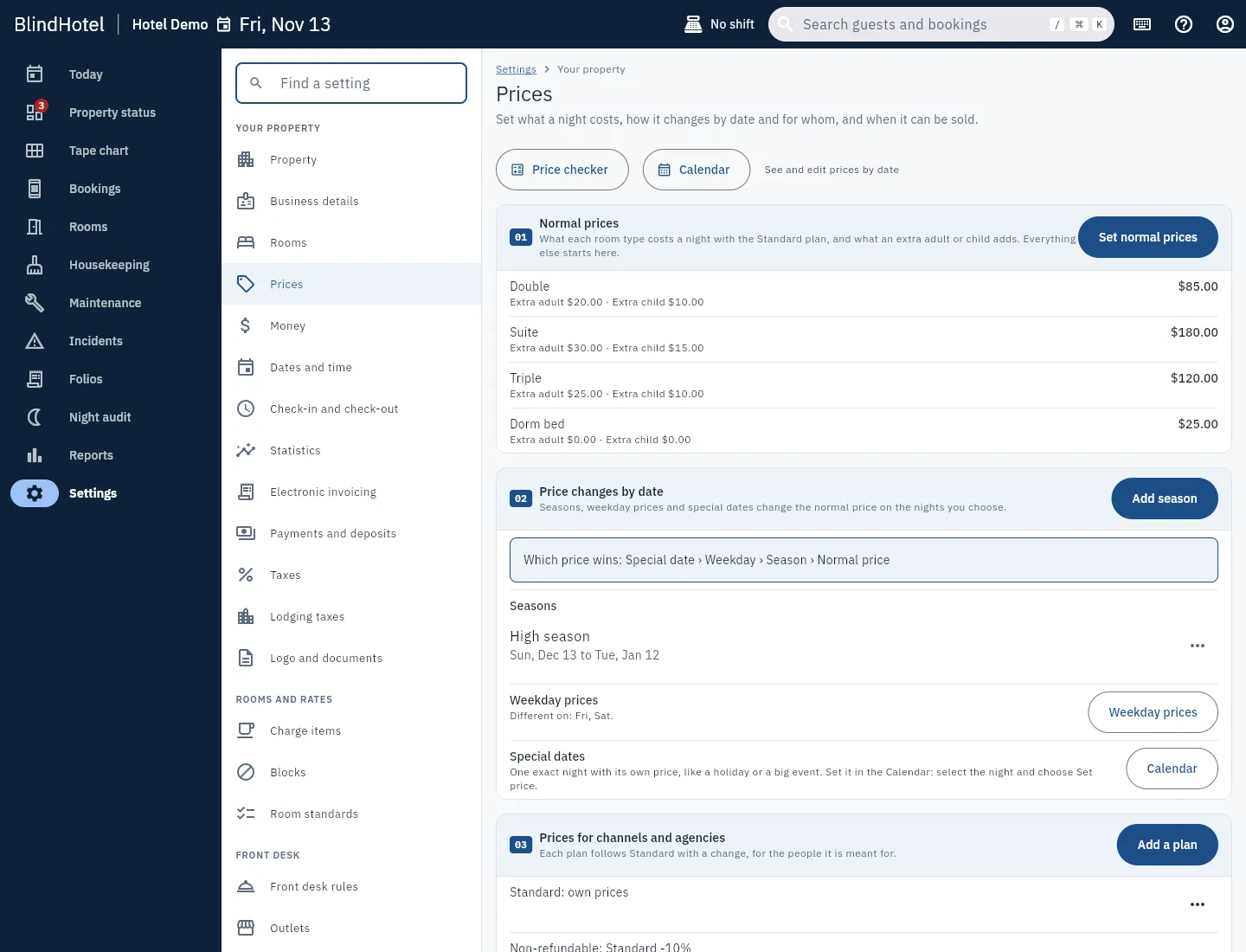
Open Settings, then Prices. In step 2, Price changes by date, tap Add season.
-
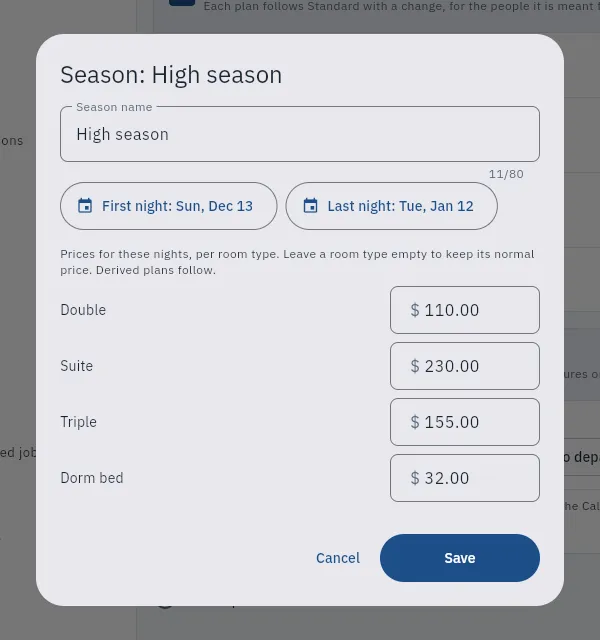
Type the Season name, for example High season.
-
Pick the First night and the Last night. The last night is included.
-
Type the price per night for each room type. Leave a room type empty to keep its normal price.
-
Tap Save.
Check your work
Section titled “Check your work”Tap Calendar and move to the dates of the season with Later nights. Every plan shows the season price, with derived plans in lighter italics. A pin shows only on a price you set for a single date. Or tap Price checker, pick a night of the season, and read the Season step.
What next
Section titled “What next”- For dearer Fridays and Saturdays all year, tap Weekday prices in step 2.
- To change the normal price, tap Set normal prices in step 1.
- To change one night or a few, pick them in the Calendar and tap Set price.
- To see which price wins on a night, see How your room price is calculated.
- To stop a season, open its More actions menu and tap Archive. Its prices stop applying. Restore brings it back.