Screen guide
The Shifts screen
At a glance
- Purpose
- Open and close your shift, record cash that comes out of the drawer, and check every shift of the hotel.
- Who uses it
- Owner
- Manager
- Front desk
- Night audit
- Where to find it
- Menu, Folios, then the Shifts tab
A cashier shift is the time one person works a cash drawer. This page explains the Shifts list, the shift card at the top and the shift that opens beside the list.
The screen
Section titled “The screen”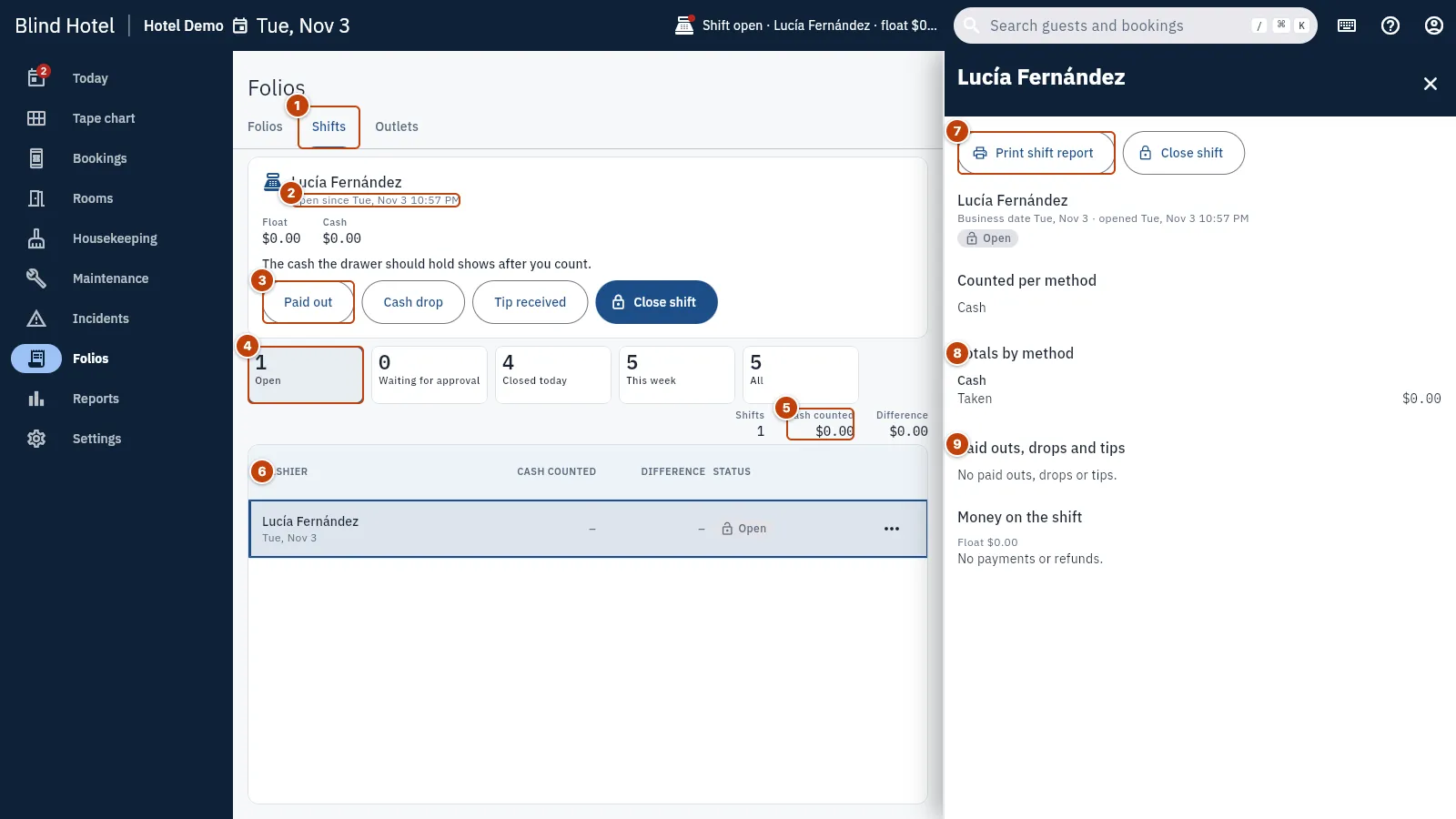
The card with your shift is at the top. Below it are the views, the table and, on the right, the shift you tapped.
Parts of the screen
Section titled “Parts of the screen”- The Shifts tab: next to Folios and, for some roles, Outlets and Companies. You see it if you work a drawer or read financial reports.
- Your shift card: who has the drawer and Open since when. Under it are the float and what each kind of payment took so far: Cash, Cards, Transfers, Other and Tips. The last line says Cash in the drawer now. With Blind count on (the usual setting) it says The cash the drawer should hold shows after you count. instead. With no shift open, the card says No shift and offers Open shift.
- The small cash buttons: Paid out, Cash drop, Tip received and Close shift. They act on your open shift.
- The views: boxes with a count each. Open is where the list starts. Then Waiting for approval, Closed today, This week and All. Tap a box to change the list.
- The totals line: Shifts, Cash counted and Difference, added up for the shifts in view. A negative difference means the drawers were short.
- The shifts table: one row per shift. The columns are Cashier, Opened / closed, Float, Cash expected, Cash counted, Difference and Status. Tap a column title to sort. Tap a row to open the shift beside the list.
- The shift’s buttons: at the top of the panel. Print shift report is always there. The rest depend on the shift and on you.
- Totals by method: for each payment method, the float, what was Taken, Tips, Paid outs, Cash drops and what the drawer Should hold. Above it, Counted per method shows the count at close.
- Paid outs, drops and tips: each one with its time, kind, category, reason, who recorded it and the amount. Under it, Money on the shift lists every payment and refund the shift took.
Options and filters
Section titled “Options and filters”- Views: the five boxes. When a view is not the starting one, a Clear filters chip puts the list back on Open.
- Sort: tap a column title. The list starts with the newest shift first.
- Show all shifts: appears when a view is empty. It switches to All.
- Your shift in the top bar: a chip says No shift or the name and float of your open shift. Its menu has Open shift or Close shift, Shift report and All shifts. A manager sees how many other shifts are open.
- Unconfirmed money: if a close, a paid out, a drop or a tip did not get a clear answer, a line at the top shows how many entries are not confirmed, with Check now. It asks the server again without doing it twice.
Actions
Section titled “Actions”- Open shift (Owner, Manager, Front desk, Night auditor): count the cash in the drawer and write it as the Opening float. If a cashier handed the drawer over, the button Count and receive appears: count the drawer and confirm. A hotel with a shared drawer has one shift that everyone at the desk uses.
- Paid out (the same four roles): cash that leaves the drawer. Write the Amount, choose the Category (Supplies, Refund to guest, Petty cash or Other) and the Reason, then Record. A Receipt note (optional) goes on the paper.
- Cash drop (the same four roles): cash moved from the drawer to the safe. Write the Amount and Record.
- Tip received (the same four roles): a tip, with the payment method. It is kept apart from revenue and shows in the shift.
- Close shift (the cashier of that shift): count each method, then Close shift. If the difference is over the tolerance, the app asks Why is it off? first. Close and hand over closes it and leaves the drawer for the next cashier. See Your cashier shift.
- Print shift report (anyone who sees the shift): prints the report of the panel.
- Force close (Owner, Manager, Night auditor, Accountant, with two-step verification): closes another person’s shift that was left open. Count every method and write a Reason (required). The shift shows who closed it and why. You cannot force close your own shift.
- Approve (Owner, Manager, Night auditor, Accountant): a shift that closed beyond the tolerance waits for approval. Write a note and approve it to make it final.
- Add note (Owner, Manager, Night auditor, Accountant): leaves a note on the shift. It shows under Manager notes.
Colours, icons and badges
Section titled “Colours, icons and badges”- Status icons: an open lock for Open, an hourglass for Waiting for approval, a check mark for Approved, a closed lock for Closed.
- Force closed marks a shift that someone else closed.
- Difference: Balanced when it is zero. When it is over, the amount shows in one colour. When it is short, it shows in the error colour.
- A red line on a shift says who force closed it and why.
Phone and desktop
Section titled “Phone and desktop”- On a phone the card stays on top and each shift is a card. The shift opens as its own page. The top bar shows an icon with a dot while your shift is open.
- On a computer the table and the shift go side by side. In a short window the page scrolls as one.
Common questions
Section titled “Common questions”- Why can’t I see the Shifts tab? You need to work a drawer or read financial reports. Housekeeping and maintenance do not.
- Why does the drawer’s expected cash not show? The count is blind. It shows after you enter your count.
- Why can’t I close someone else’s shift? Only its cashier closes it. A manager can use Force close, with two-step verification.
- Why is a closed shift still in the list? Closed shifts stay for the record. Use Closed today, This week or All.