Screen guide
The Subscription screen
At a glance
- Purpose
- See where your subscription stands and what you pay, and change it, cancel it or take your data with you.
- Who uses it
- Owner
- Where to find it
- Settings, then Billing, then Subscription
The page where the owner sees the plan and what it costs, reads the invoices, changes the plan, downloads the hotel’s data and cancels.
The screen
Section titled “The screen”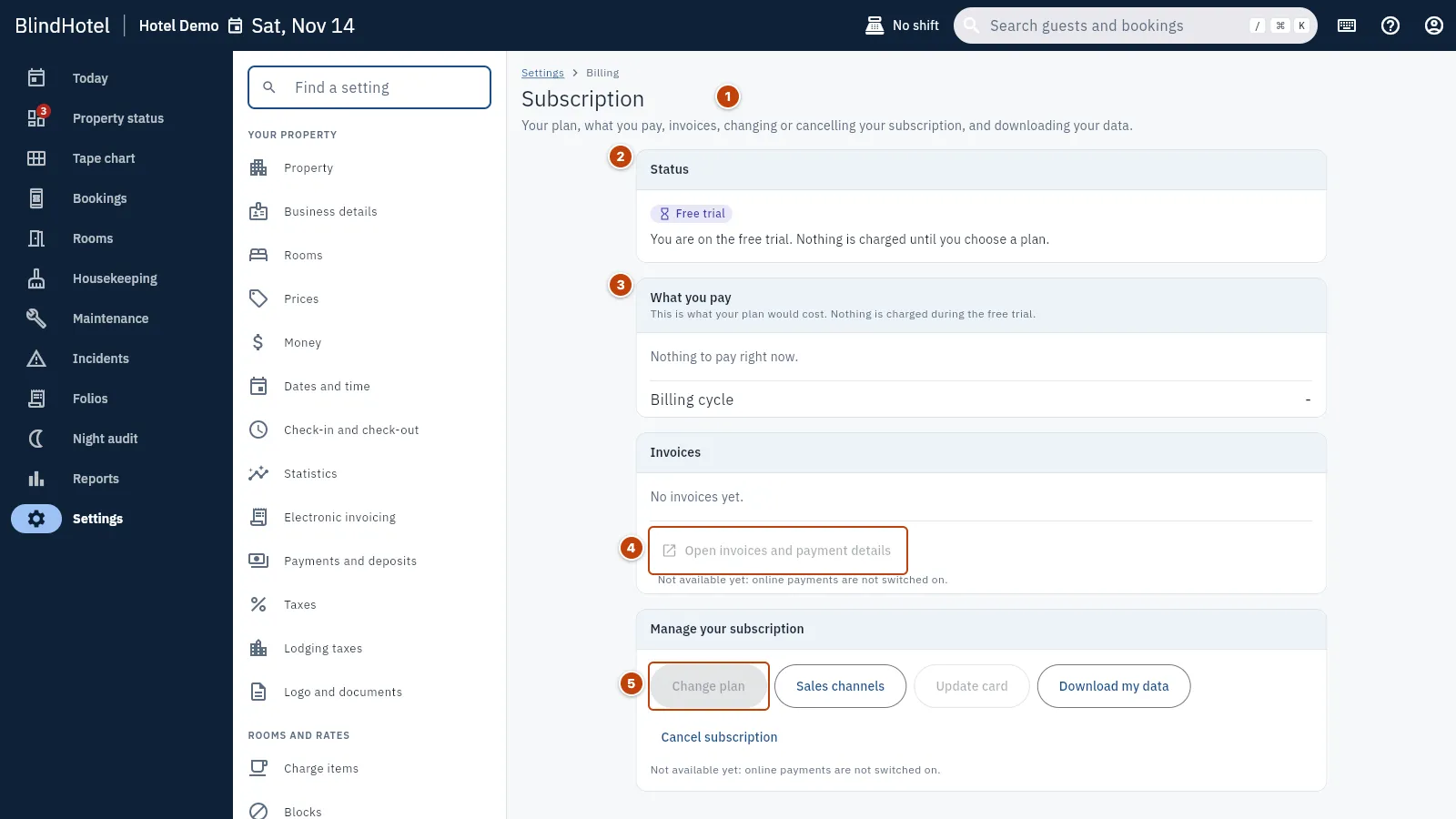
The picture shows a hotel on its free trial, so Change plan and Update card are off.
Parts of the screen
Section titled “Parts of the screen”- Page header: the trail Settings, then Billing, the title Subscription and one line that says what the page is for. On a narrow screen it has an arrow back to the Settings menu.
- Status: the first card. A chip with an icon and a word says where the subscription stands, a sentence explains it in plain words, and the dates that matter follow: the day of the next charge and its amount, or the last day of full access, or the last day to download your data.
- What you pay: the card with the plan and the number of rooms it counts, the sales channels, Electronic invoicing when a property uses it, any discount (it takes something off the plan and off each add-on), the Total per month and the Billing cycle. Amounts line up on the right. When a change is already planned, or your plan will move to fit your rooms at the next renewal, a box under the card says so, with the day.
- Invoices: the card with the list of invoices when the payment provider sends it, and the button Open invoices and payment details. Until online payments are switched on the list says No invoices yet. and the button is off, with a note.
- Manage your subscription: the card with the buttons Change plan, Sales channels, Update card, Download my data and Cancel subscription, and Resume subscription while a cancellation is under way. When the hotel is archived the card has only Download my data and Pay to bring the hotel back, with a note under them.
Options and filters
Section titled “Options and filters”- There are no filters. The page reads the subscription each time you open it and again after every change.
Actions
Section titled “Actions”- Change plan (Owner): opens a window to pick a plan and a billing cycle. A bigger plan starts now and you pay the difference for the rest of the period. A smaller plan starts when the period ends. If a change is already planned, choosing your current plan and cycle cancels it. Only an active subscription can change its plan; while the trial runs, the card shows what the plan would cost and nothing is charged.
- Sales channels (Owner): opens a window with the number of connected channels. While they are not on sale it shows Coming soon and changes nothing. The window shows what the number on the stepper costs a month: a base price for up to five channels, then a price for each extra one, up to twenty.
- Update card (Owner): opens the payment provider’s page for your card and invoices. It is off, with a note, until online payments are switched on.
- Download my data (Owner): asks for all the hotel’s data as one file and downloads it, even when the hotel is archived. A file our support team prepared for you shows the note Prepared by support for you. See Download your data.
- Pay to bring the hotel back (Owner): shown instead of Update card when the hotel is archived. It opens the payment provider’s page. Once the payment arrives the hotel comes back exactly as you left it.
- Cancel subscription (Owner): opens a window that says what happens and when, with one confirm button. See Cancel your subscription.
- Resume subscription (Owner): shown only while a cancellation is under way. It takes the cancellation back, and the subscription renews as usual.
Colours, icons and badges
Section titled “Colours, icons and badges”- The status chip always has an icon and a word: Free trial, Active, Payment overdue, Read-only, Cancelling, Cancelled or Archived. Green is for Active, amber for Payment overdue and Cancelling, orange for Read-only, and grey for Cancelled and Archived.
- A box with an arrow icon under What you pay is a change that is already planned. A box with an info icon is a warning that your plan will move to fit your rooms.
- Coming soon is the badge in the window of the sales channels.
Phone and desktop
Section titled “Phone and desktop”- On a screen narrower than 1000 pixels (a phone or a tablet) the page fills the screen, with an arrow back to the Settings menu.
- On a phone the buttons of the last card stack, one under another, each as wide as the screen. On a wide screen they sit side by side.
- The page has no keys of its own.
Common questions
Section titled “Common questions”- Why can’t I see this page? Only the owner of the hotel sees it. A manager or any other role does not. Ask the owner.
- What is the box at the top of every screen? When a payment failed, when the subscription is being cancelled, or when it has ended, a box at the top says so for everyone, with a button for the owner to open this page.
- My hotel is read-only. Can I still reach this page? Yes. The owner can always open this page and download the data, even when the hotel can only be read.
- My hotel is archived. What can I do here? Two things: download your data and pay to bring the hotel back. Everything else is closed. The card Status shows the day your data is deleted, so download it before then.
- Why is Update card off? The payment provider is not switched on yet. The button works once it is.
- Where do I see my invoices? In the card Invoices, once online payments are switched on.