Process guide
When the app says no at the desk
Time2 minutes
- Owner
- Manager
- Front desk
- Night audit
DifficultyMedium
The reasons the app refuses a check-in, a check-out or a booking, and the fix for each.
Purpose
Section titled “Purpose”Some rules protect the hotel: a room must be free, the folio must be settled, every adult must be registered. When one is not met, the sheet tells you in plain words and keeps the button off. This page lists those words and what to do.
Ingredients
Section titled “Ingredients”- Information: the exact words of the message, in the footer or in red at the top of the sheet.
- Permissions: some fixes need a manager. The message says when.
Expected result
Section titled “Expected result”The message is gone, the footer says “Ready”, and the main button is on.
-
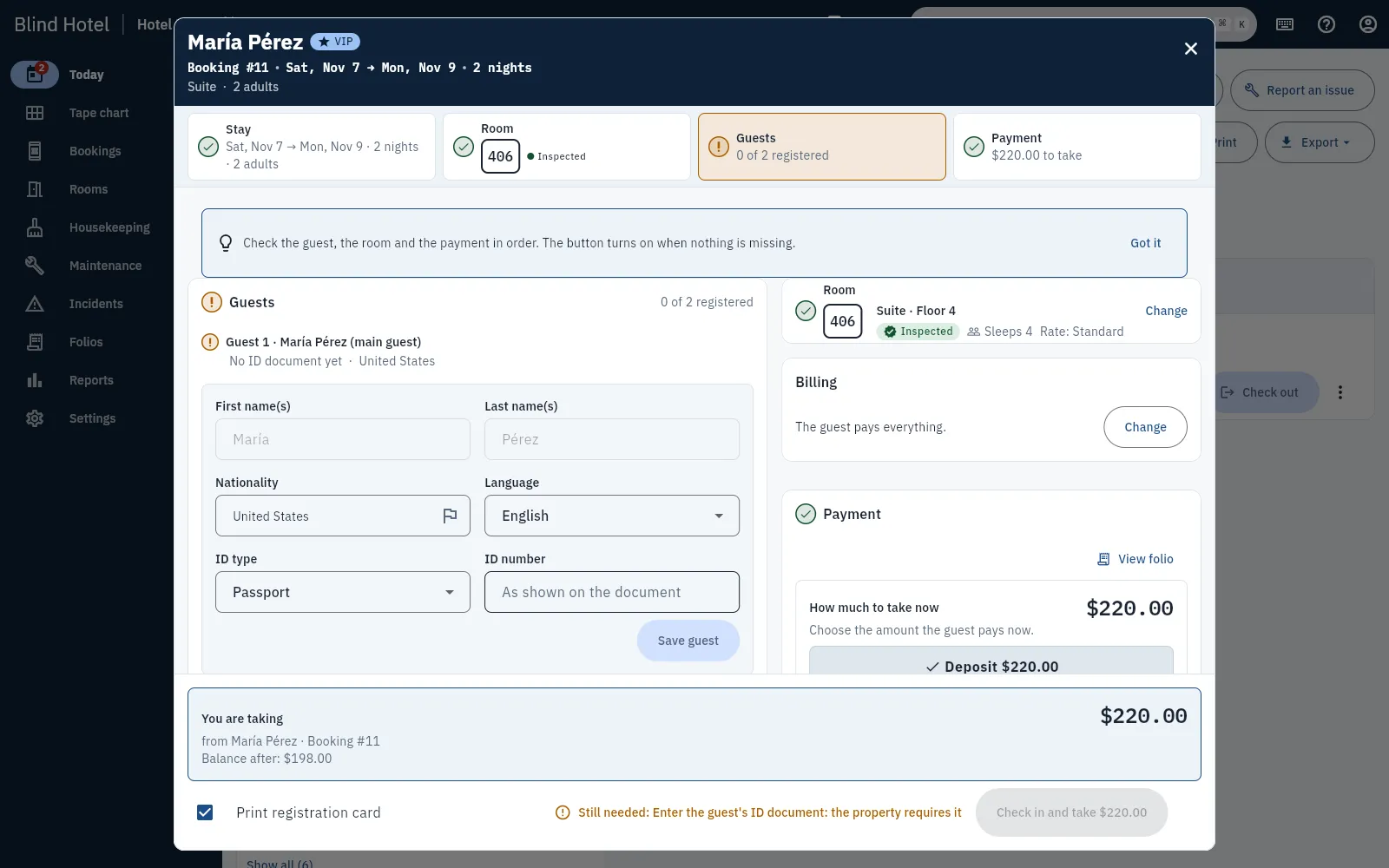
Read the line at the bottom of the sheet. It says “Still needed:” and lists what is missing. For a check-out it lists the items separated by dots.
-
Tap the amber step in the steps bar at the top. The sheet jumps to the section that has the problem.
-
Fix that item with the list below.
-
If the box Before checking in lists a warning, tick I’ve seen the warnings.
-
Repeat until the footer says “Ready”, then tap the main button.
-
If the server refuses after you tap, a red message appears at the top of the sheet. Nothing was saved. Read it below, fix it and tap again.
Check your work
Section titled “Check your work”- The footer is green and says “Ready” or “Ready to check in”.
- After you tap the main button, the sheet closes and a message confirms what was done.
What next
Section titled “What next”- If a message is not listed here, write down what you were doing and see Contact support.
- Back to the task: Check in a guest, Check out a guest or Walk-in.
- For every part of a sheet, see The check-in sheet and The check-out sheet.
Considerations
Section titled “Considerations”Check-in
Section titled “Check-in”- “This guest is already checked in.”: someone did it first. Look under In house on Today.
- “Only a confirmed booking is checked in.”: the booking is not confirmed, for example it was cancelled. Open it and look at its status.
- “This booking’s nights are over.”: all its nights have passed. Make a new booking, or use Walk-in.
- “This booking arrives on a later day: change the arrival to today first.”: open the booking, change its dates, then check in.
- “This booking began on an earlier day: choose what happens to the nights missed.” or “Decide what happens to the nights missed.”: in Stay, choose to charge them or to move the arrival to today.
- “Only a manager can waive this: ask one.”: moving the arrival without a charge is for an Owner, a Manager or a Night auditor. Ask one, or charge the nights.
- “Assign a room or bed first.”: tap Change room, type or rate and pick one.
- “Room … is still occupied: check its guest out first.”: check that guest out, or pick another room.
- “Room … isn’t inspected, and the property checks guests in only to inspected rooms.”: ask housekeeping to inspect it, or pick another room.
- “Room … is dirty.”: a warning. Tick I’ve seen the warnings, or pick a clean room.
- “Enter the guest’s ID document: the property requires it.”: type the ID type and number and tap Save guest.
- “Every adult must be registered: add the missing guests’ names and IDs.”: use Add companion for each missing adult.
- “A guest of this booking is blacklisted.”: a warning. Tick I’ve seen the warnings only if your manager agrees.
- “The deposit isn’t fully paid.”: take the deposit in Payment. If your hotel requires it, a manager can check the guest in with Manager’s reason (required).
- “Apply or cancel the new dates.”: you changed dates in Stay. Tap Apply change or Cancel.
- “Confirm the warnings to check the guest in.”: tick I’ve seen the warnings.
- “Open your cashier shift first.”: tap Open shift. See Your cashier shift.
- “This guest can’t be checked in now.”: a problem the app has no words for. Contact support.
Check-out
Section titled “Check-out”- “This guest isn’t checked in.”: the guest is already out, or was never in.
- “Settle the folio before checking out.”: take the payment in Payment. See Take a payment.
- “Leaving a balance open needs two-step verification.”: only an Owner or a Manager may leave a balance open, with two-step sign-in. Otherwise settle it.
- “Refund the credit of … first”: tap Refund, or Keep as credit if you are an Owner or a Manager.
- “Confirm the early departure first.”: tick the box that starts with “Leaving”, in Departure.
- “The payments are … more than the balance” or “Left to assign …”: correct the amounts in Payment until they match.
- “Someone else changed this just now. Reload and try again.”: close the sheet, open it again and repeat.
New booking and walk-in
Section titled “New booking and walk-in”- “Nothing of that type is free on one of the nights.”: pick another type or other dates.
- “The rate’s restrictions don’t allow it.”: a closed day, a minimum stay or a limit of guests. An Owner or a Manager can tick Book anyway (override the rate’s restrictions).
- “Those nights can’t be booked: a night has no price.”: ask a manager to set the price.
- “That room or bed is already blocked or booked for some of those nights.”: pick another room.
- “Arrival can’t be before today.” and “Arrival can be at most two years ahead.”: change the arrival date.
- “Every room needs at least one adult. Add adults or remove a room.”: fix the guests.
- “A room has more guests than it holds. Check the other guests.”: move a guest to another room.
- “Only a manager can book this guest.” or “This guest is blacklisted.”: an Owner or a Manager chooses Book anyway.
- “Nothing is free for these nights and guests.” or “No room can take a guest yet: the free ones are still occupied by guests who are leaving.”: check someone out first, or change the dates.
- “Enter the guest’s name.”, “Enter adult 2’s name.” or “Choose a room.”: fill in what the footer asks.
- “Your free trial has ended. Contact us to continue.” or “This account is suspended, so it is read-only. Contact us.”: nothing can be written until the Owner contacts support.
Undo is refused
Section titled “Undo is refused”- “Too late to undo: a check-out can be undone for 10 minutes.” or “…the business day has closed since.”: the time is over.
- “Can’t undo: a receipt was issued for this check-out.”: the receipt was printed. Make a new booking if needed.
- “An early departure can’t be undone: its nights went back on sale. Book the guest again.”: book the guest again.
- “Can’t undo: the room was given to another guest.” or “…housekeeping has started on the room.”: the room moved on. Use another room.
- “Can’t undo: something was posted to the folio since.”: a charge or payment was added.
- “A check-in is undone only on the day it was made.” or “Something was posted to the folio since the check-in: it can’t be undone.”: same rule for check-in.