Screen guide
The My day screen
At a glance
- Purpose
- See your rooms for today, start and finish each one, and tell the team what you find.
- Who uses it
- Housekeeping
- Where to find it
- Menu, My day. On a phone it is the first button of the bottom bar.
My day is the housekeeper’s list of rooms for today: what to clean, in what order, and how far along you are.
The screen
Section titled “The screen”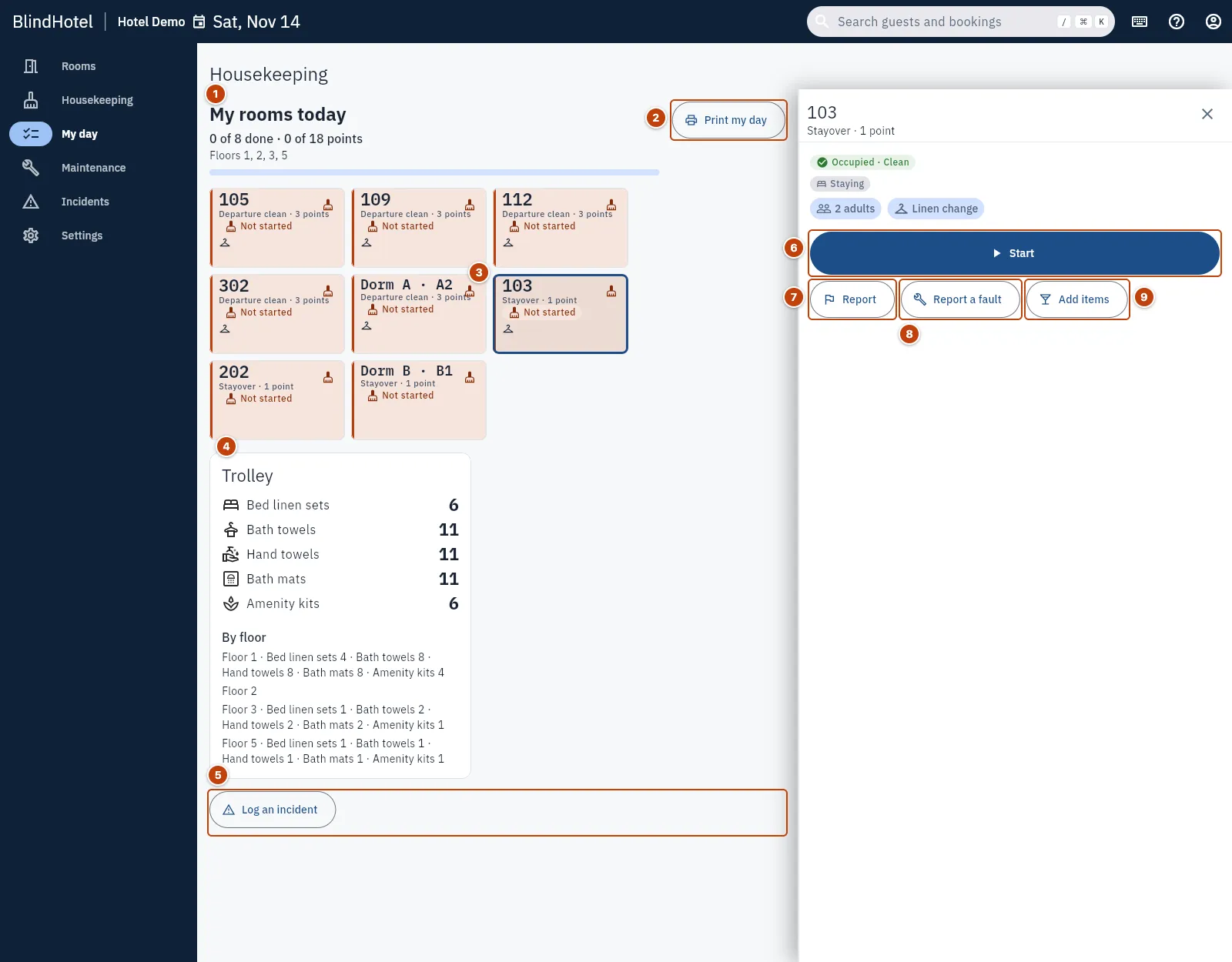
Parts of the screen
Section titled “Parts of the screen”- My rooms today: how many rooms and points you have done (“3 of 7 done · 12 of 19 points”), your floors, your shift hours and a bar that fills as you go.
- Print my day: prints one page with your rooms, their notes and the trolley list. Computers and tablets only.
- Room tile: one for each of your rooms, in the order to work them. It shows the room, the kind of clean, the points, the stage and marks such as a rush or an arrival time. Tap it to open the room.
- Trolley: what to load for your rooms: bed linen sets, towels, bath mats, amenity kits and the extras guests asked for, floor by floor.
- Log an incident: for anything unusual. It sits under your rooms on purpose, so the day’s work comes first.
- Start: the big button for the next step. Once you start a room it becomes Done.
- Report: tells the supervisor and the front desk what you found in the room.
- Report a fault: reports something broken, with the room already filled in.
- Add items: adds minibar items to the guest’s folio.
Options and filters
Section titled “Options and filters”- There is no search or filter. The list shows only your rooms, already in work order.
- A Rush comes first. Next come rooms with a guest arriving today, earliest first. Then departures, inspections, stayovers, turndowns and deep cleans. Rooms sent back come first within each.
- On a phone, finished rooms fold under Done with their number, and the trolley under Trolley.
Actions
Section titled “Actions”- Start (Housekeeper): marks the room in progress. A departure clean cannot start while the guest is still in the room: the card says “Waiting for the guest to check out.” A room with Do Not Disturb waits too.
- Done (Housekeeper): marks the room clean. A message says “{room} is clean.” for ten seconds, with Undo if you tapped by mistake.
- Report (Housekeeper): opens Report and the room. Choose Found occupied, Found vacant, No answer, Do Not Disturb (only for an occupied room not already on it, with no note) or Report an issue, add a Note (optional) and tap Send report. For Report an issue the note is needed: it opens a maintenance issue, with the kind and Low, Normal or Urgent.
- Report a fault (Housekeeper): opens Report an issue with your room in it. Choose how urgent it is, add a note, then tap the kind of fault.
- Add items (Housekeeper): only for a room with a guest. Tap the plus or minus of each item, then Charge to the room. The button shows the total.
- Log an incident (Housekeeper): opens the form. Say where it happened, because no room is filled in.
- Print my day (Housekeeper): prints the page.
Colours, icons and badges
Section titled “Colours, icons and badges”- On a phone, a red bar on top of a card, Guest waiting, means a rush: do that room first. On a tablet or a computer the room shows a lightning bolt, Rush. It may carry a note.
- The marks on a room are Do Not Disturb, the arrival time or Arrival today, a VIP star, and Linen change for sheets and towels. Chips say what the stay asks for: an extra bed, a crib, a VIP amenity, allergy-free pillows, how many adults and children.
- A red note, “Sent back:” and the words, is what the supervisor found wrong when the room was inspected.
- Saving… with a spinner means your tap is on its way. Saved with a check means it got there. Both are written, so you do not need the colour.
- The room’s status, Dirty, Clean or Inspected, has its own colour and word.
Phone and desktop
Section titled “Phone and desktop”- On a phone, each room is a big card with big buttons: Start, then Done, and under them Report, Report a fault and Add items. Log an incident is the last button. There is no Print my day. Cleaning in the bottom bar opens the same list.
- On a computer or a tablet, rooms are tiles with the trolley beside them, and a room opens in a panel on the right with the same buttons. Esc closes the panel.
Common questions
Section titled “Common questions”- Why can’t I press Start? It is not shown while the guest of a departure clean is still in the room (the card says “Waiting for the guest to check out.”), or while the room has Do Not Disturb (the card shows the Do Not Disturb mark).
- Why is my list empty? It says “No rooms for you yet today.” The supervisor has not given you any rooms yet. Ask them to use Plan the day.
- Why did a room jump to the top? The front desk or the supervisor marked it Rush: guest waiting.
- Why does it say Saving… and not Saved? The connection is slow. The app keeps your tap and sends it again until it gets through. See If the internet is down.
- Why is Add items missing? It shows only for a room with a guest in it (not for a dorm bed), and only if your role may charge the minibar.