Screen guide
The folio
At a glance
- Purpose
- See what a guest owes, add a charge, take a payment, fix a mistake and print a receipt.
- Who uses it
- Owner
- Manager
- Front desk
- Night audit
- Where to find it
- Menu, Folios
The folio is a guest’s bill: everything charged and everything paid. This page explains the Folios list and the folio that opens beside it.
The screen
Section titled “The screen”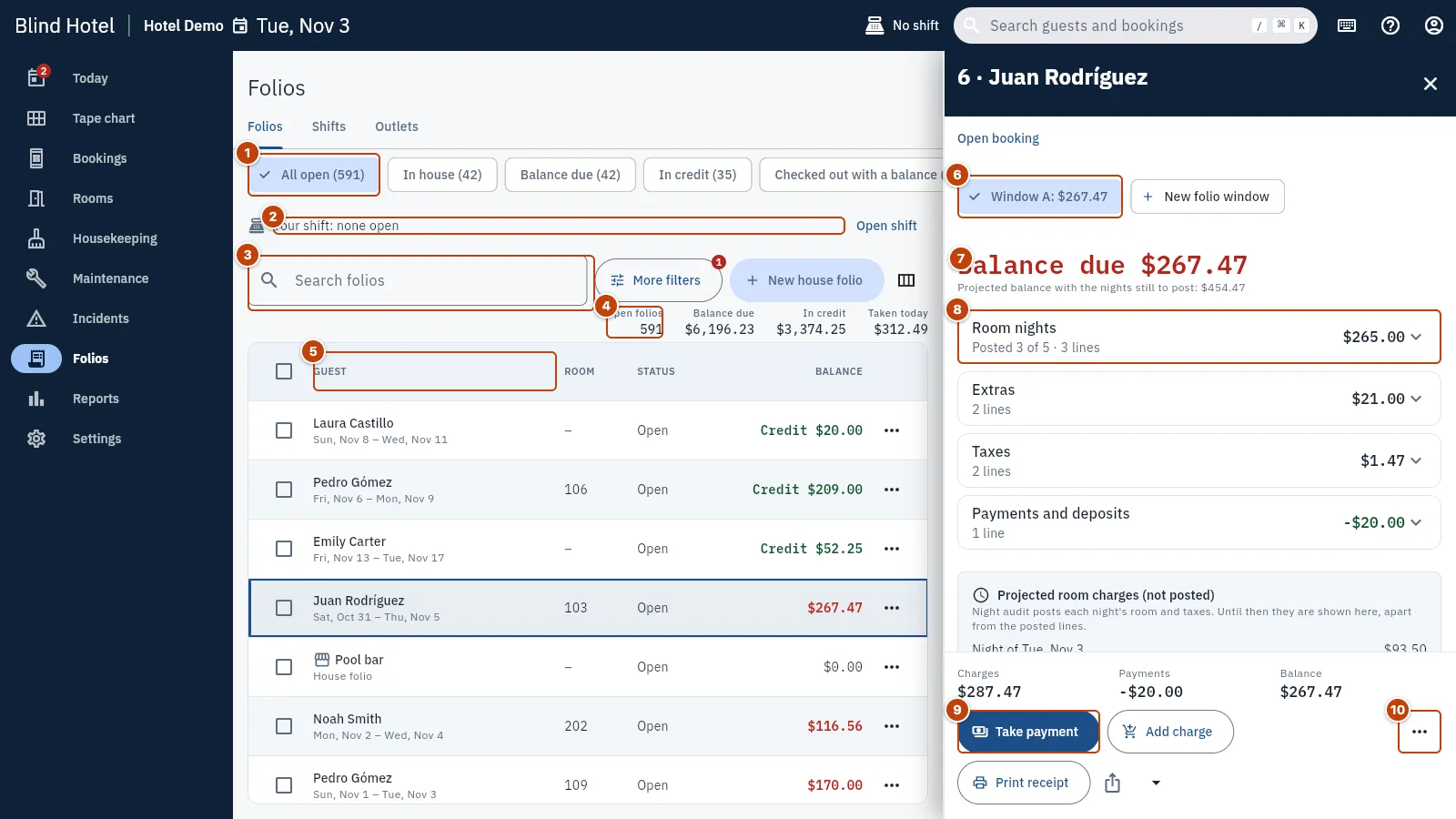
The list is on the left. The folio you tapped is on the right.
Parts of the screen
Section titled “Parts of the screen”- Views: ready-made lists, each with how many folios it holds: All open, In house, Balance due, In credit, Checked out with a balance, Arriving with a deposit, House accounts, Closed today and All folios. The list starts on All open. On a narrow screen, or while a folio is open beside the list, they are chips along the top.
- Your shift line: says whether you have a cashier shift open, with Open shift or Close shift beside it. Cash, card and wallet payments go on your open shift. It is not shown to people who do not work a drawer.
- Search and filters: type a guest, a booking number, a folio number, a room or a payment reference in Search folios. More filters opens the rest. New house folio opens a folio for a sale that is not a guest’s, such as the bar.
- Totals line: Open folios, Balance due, In credit and Taken today, added up for the folios in view. It changes with the view and the filters.
- The folios table: one row per folio, with the guest and dates, room, status and balance. A balance is red when the guest owes and green when the guest is in credit. The three dots at the end of a row open its menu: Open folio, Open booking, Take payment (while the folio is open) and Print bill for review.
- Window tabs: a stay’s folio can have several windows. Window A is the guest’s own. Each chip shows its balance. New folio window adds another, for example to bill a company.
- The balance: in large type, Balance due, In credit or Settled. A line under it shows the projected balance with the nights the night audit has not posted yet.
- The cards: the lines in groups, folded until you tap one: Room nights, Included in your rate, Extras, Allowances, Taxes, Payments and deposits and, only when there are some, Discounts and reversals. Each line has its day, what it is, who posted it and its amount. Nights not posted yet sit apart, under Projected room charges (not posted).
- The foot: always in view. It shows the Charges, Payments and Balance totals and the buttons Take payment, Add charge and Print receipt (once the folio has postings). Beside Print receipt are Share PDF (an icon) and an arrow with Print bill for review, Share bill for review PDF and Print in another language….
- More actions: the menu at the end of the foot, with Refund, Receipts, Close folio and Reopen folio. It shows only what you can do now.
Options and filters
Section titled “Options and filters”- Search folios: press / to jump to it. It looks at the guest, booking number, folio number, room and payment reference.
- More filters: Status, Type (guest folios or house accounts), Balance, Last activity, Payment method used, Has payments, Has reversals, Has discounts and Created by. A number on the button says how many are on. Clear filters takes them all off.
- Save current filters as a view: in the views menu. It keeps your own list, saved for you at this property.
- Columns and row height: the columns icon (on a computer) picks the columns and Comfortable or Compact rows. Tap a column title to sort.
- Tick rows: a bar appears with Export CSV, Print statements and Share PDF for the folios you ticked.
- Tabs: next to Folios there can be Shifts (if you work a drawer or read financial reports), Outlets (sales at the restaurant or bar, charged to a room or paid there; if you may post charges) Companies (company accounts; if you read financial reports) and Fiscal (the electronic invoices, credit notes and debit notes, with their status; only where electronic invoicing is on and you may read it). Each has its own screen. In an open folio, Invoice details sets who the invoice is made out to. See Invoice a guest or a company.
Actions
Section titled “Actions”- Take payment (Owner, Manager, Front desk, Night auditor): opens the payment window for this folio. Press P with a folio open. See Take a payment.
- Add charge (Owner, Manager, Front desk, Night auditor): tap an item to charge one. A message says what is being charged, with Undo for a few seconds. For another quantity, a date or your own text, tap Quantity, date or another charge, then Post charge.
- Discount (Owner, Manager, Front desk, Night auditor): in the menu of a charge. A percent or an amount, with a Reason (required). A bigger discount than the hotel allows needs an Owner or a Manager.
- Discount the whole bill (Owner, Manager, Front desk, Night auditor): in More actions of an open folio. A percent or an amount off everything, spread over the charges in proportion; each charge keeps its own tax. See Give a discount on one item or the whole bill.
- Move to… (Owner, Manager, Front desk, Night auditor): in the menu of a charge. Moves it to another window of the stay or to Another guest.
- Reverse (Owner, Manager, Front desk, Night auditor): in the menu of a line. Write the Reason (required). You can reverse what you posted yourself. A line someone else posted needs an Owner or a Manager.
- Refund (Owner, Manager, Front desk, Night auditor): only when the guest is in credit. Choose the method and write the Reason (required).
- Print receipt (everyone who sees the folio): issues a numbered receipt of the folio as it is now. Receipts lists the ones already issued, and Reprint gives the same copy again.
- Close folio (Owner, Manager, Front desk, Night auditor): only when the balance is Settled. A guest’s folio closes by itself at check-out, so this is for house folios and windows.
- Reopen folio (Owner, Manager): opens a closed folio again. It asks for a reason and needs two-step verification.
- New house folio (Owner, Manager, Front desk, Night auditor): a folio for sales that are not a guest’s. See Your cashier shift for the drawer that takes the money.
Colours, icons and badges
Section titled “Colours, icons and badges”- Red amount: the guest owes. Green amount: the guest is in credit, or a payment. Plain amount: Settled.
- A discount shows as a negative line under the charge it reduced, with its reason.
- The chip under the balance is the electronic invoice of the folio, with its number and its status. Tap it to read the authority’s code and the QR, to Print the copy for the guest with that code or to Share PDF. The credit and debit notes that came after are listed next to it.
- Reversed: the line stays, struck through. A new line, Reversal of, has the opposite amount.
- Before arrival: the charge is for a day before the guest arrived.
- Closed with a lock: the folio takes no more charges or payments.
- A star next to a name is a VIP. A shop icon and House folio mark a house account.
Phone and desktop
Section titled “Phone and desktop”- On a computer the list and the folio are side by side. On a tablet or a phone the folio opens as its own page. On a phone the list is cards; on a tablet it is a table.
- Ticking rows and the columns menu are for a computer or a tablet; a phone has neither.
- / jumps to the search. P takes a payment in an open folio.
Common questions
Section titled “Common questions”- Why can’t I edit or delete a line? Nothing posted is ever changed. Use Reverse, and the folio shows both lines.
- Why is there no Take payment button? The folio may be closed, or your role may not take payments. An Accountant reads folios but does not post.
- Why does the balance differ from the total of the cards? The cards show posted lines. The projected line adds nights the night audit has not posted yet.
- Where did a closed folio go? All open hides it. Pick Closed today or All folios.