Process guide
Set up rooms
Time15 to 30 minutes
- Owner
- Manager
DifficultyMedium
Tell the app which rooms your hotel has. This is the setup step Your rooms.
Purpose
Section titled “Purpose”A booking is made on a room, so rooms come first. A room type is what you sell, for example Double. Rooms are the real doors, for example 101 and 102.
Ingredients
Section titled “Ingredients”- Permissions: Owner or Manager.
- Information: The names of your room types, the most guests each takes, how many rooms of each you have, and the numbers on the doors. For a dorm, how many beds each dorm room has.
- Documents: Optional: a spreadsheet saved as CSV with one row per room, if you have many rooms.
- State: Nothing before it. Your business details can come first or after.
Expected result
Section titled “Expected result”Each room type is a block that lists its rooms as small buttons, with the numbers of your doors.
-
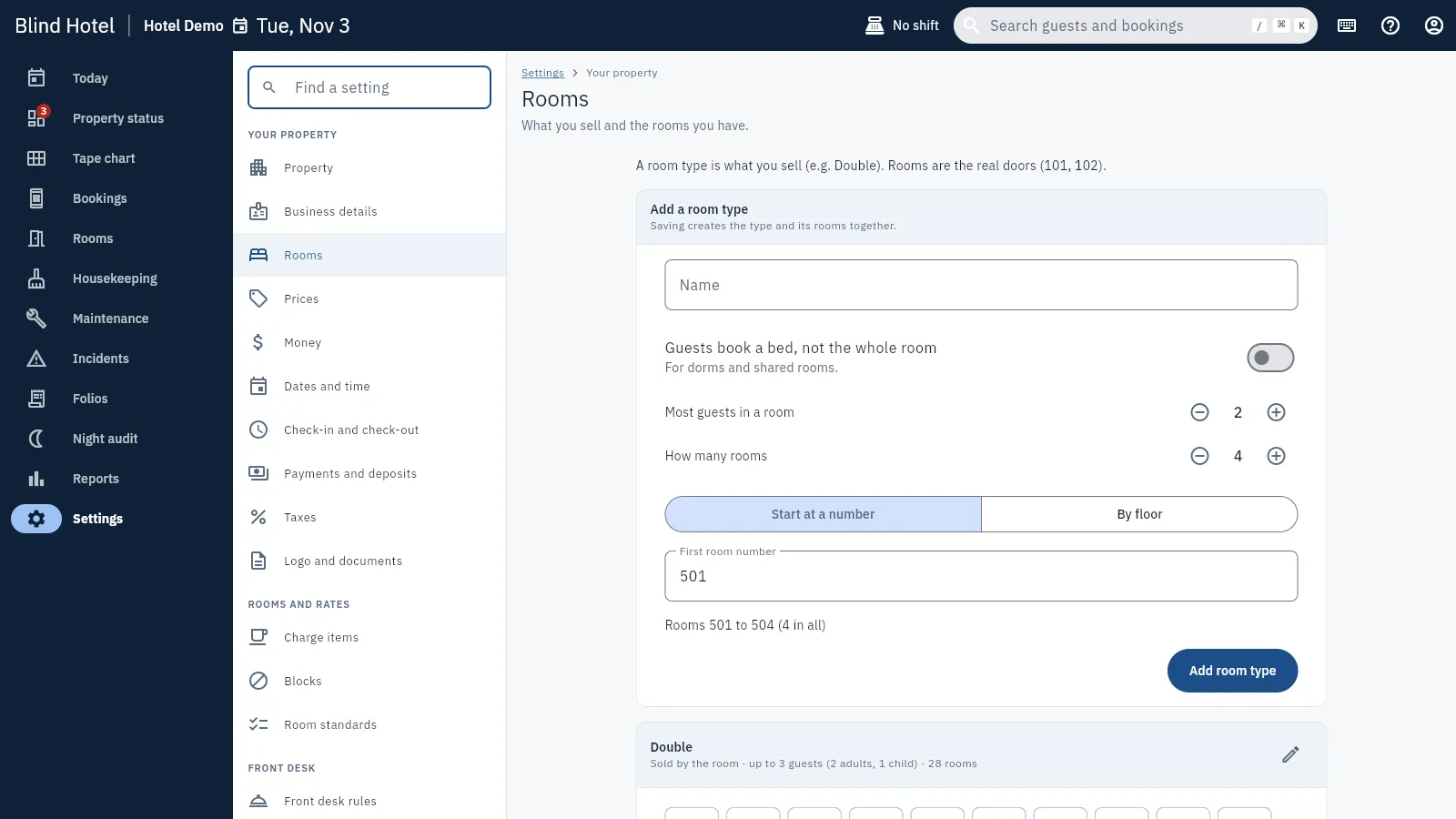
In the quick setup, open the step Your rooms. Later, open Settings, then Rooms. It is the same screen.
-
If you have no rooms yet, look at Start with the usual rooms. It suggests the rooms of a place like yours. Tap Add these rooms if they fit, then go to step 8. You can change them after.
-
Otherwise use the card Add a room type. Type the Name, for example Double.
-
Choose Most guests in a room and How many rooms of this type you have.
-
Choose how to number them: Start at a number (type the First room number, for example 101) or By floor. The app shows the numbers it will make, for example rooms 101 to 110.
-
Check that the numbers match the doors of your hotel, then tap Add room type. The type and its rooms are created together.
-
Repeat for each room type.
-
Look at each block. Tap a room to rename it or remove it. Tap Room in a block to add more rooms.
-
In the quick setup, tap Next.
Check your work
Section titled “Check your work”Each room type has a block, and each block shows its rooms. The numbers match your doors. The last quick setup step does not list “At least one room type with rooms or beds in use” as missing.
What next
Section titled “What next”- Beds: If guests book a bed and not the whole room, as in a dorm, turn on Guests book a bed, not the whole room. Then you say how many beds each dorm room has and how many dorm rooms there are.
- In the room type and in each room you can write the number of Beds and of Extra beds. It is optional. The tourism statistics count beds from it. A room sold by the bed counts as one bed.
- Many rooms: Under More options you can bring the rooms from a file. There is a template to download. Fill it in, then tap Add the rooms in the file.
- Change it any time: Nothing here is final. Add, remove or rename rooms later in Settings, then Rooms. Tap the pencil of a block to change its room type.
- Next, set your prices. See Set prices and taxes.