Screen guide
Reports: the basics
At a glance
- Purpose
- Find a report, open it for the dates you want, and print it or save it as a file.
- Who uses it
- Owner
- Manager
- Front desk
- Night audit
- Where to find it
- Menu, Reports
Reports answer questions about the hotel with a chart and a table. This page explains the list of reports and how a report opens.
The screen
Section titled “The screen”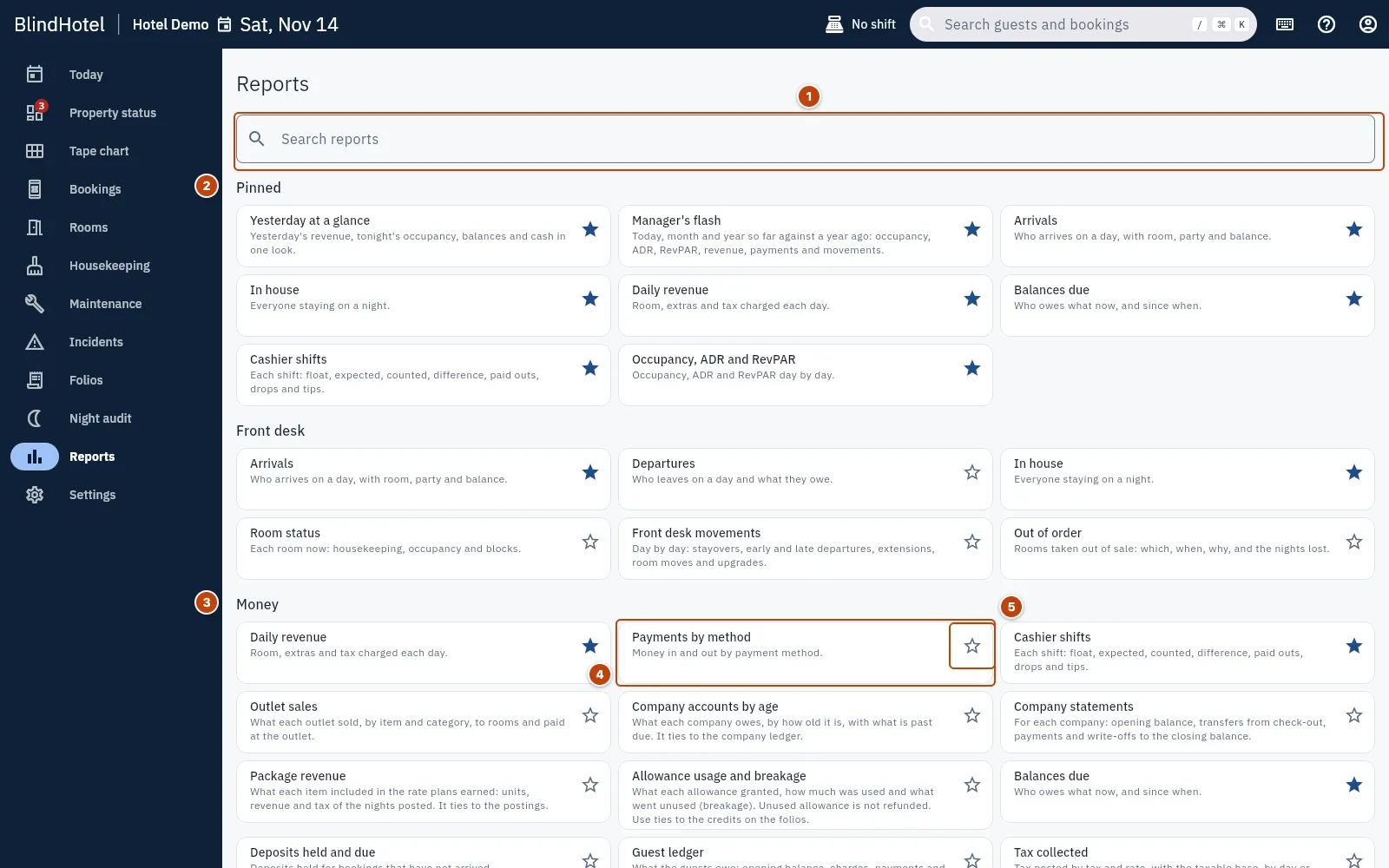
Tap a card and the report opens in a large window, the report preview. See The report preview.
Parts of the screen
Section titled “Parts of the screen”- Search reports: the field at the top. Type to narrow the cards by name or by what they answer.
- Pinned: the reports you pinned, on top. A new account starts with a set of everyday reports pinned.
- A group: a heading and the cards under it, such as Money. The groups are Front desk, Money, Performance, Housekeeping, Maintenance, Guests and compliance and Audit.
- A report card: the report’s name and one line on what it answers. Tap it to open the report.
- The star: pins the report to the top of the page. A filled star is a pinned report.
Options and filters
Section titled “Options and filters”- The list of reports: before you open one, the page shows cards in groups. Each card has the report’s name and what it answers.
- Search reports: type to narrow the cards. If nothing fits, it says No report matches your search.
- Pinned: the star on a card pins the report to the top of the page. The pins are kept on this device, for you only.
- Yesterday at a glance: a card in Performance. It opens a page of tiles: yesterday’s revenue, occupancy, balances due, cash over or short and unpaid deposits. Each tile opens its report for that day.
- Audit log: a card in Audit, for people who may read it. It lists who did what and when.
- Locked cards: a group you may not open says These reports need more access. Ask a manager. A group with only some locked says More reports here need other access and a number.
- Rate plan in the reports: Source of business and No-shows and cancellations can be grouped by rate plan, and with Cancellation and no-show rates they can be read for one plan. Revenue, ADR and room nights by rate plan are in Source of business, grouped by Rate plan. The Bookings and Night audit pages offer Source of business in their Reports row. See The report preview.
- Guest register: opening it is written to the audit log. ID numbers and birth dates stay hidden for a role that may not see them.
- The Reports row: Today, Housekeeping, Bookings, Maintenance and Night audit each have one under their title bar. Pick a report there and use Preview, Print or Export without coming to this page. See Preview, print or export a report.
Actions
Section titled “Actions”- Open a report (Owner, Manager, Front desk, Night auditor, Accountant): tap its card. It opens in the report preview, on the dates you last used for that report on this device. Front desk and Guests and compliance open for everyone who sees Reports; Front desk has the daily lists, such as Arrivals, Departures and In house. Money and Performance need the financial reports permission: Owner, Manager, Night auditor and Accountant. Housekeeping is for the Owner and the Manager, Maintenance for the Owner, the Manager and the Front desk, and Audit for the Owner and the Manager.
- Pin a report (the same roles): tap the star on its card. Tap it again to unpin it.
- Print and Export (the same roles): at the bottom of the preview. Export opens a menu with CSV file and Excel file. See The report preview.
- All reports: the arrow on top of Yesterday at a glance and of Audit log. It brings you back to the cards.
Colours, icons and badges
Section titled “Colours, icons and badges”- A filled star on a card: pinned. A star with only an outline: not pinned.
- A lock on a group: your role may not open it.
Phone and desktop
Section titled “Phone and desktop”- The cards go in three columns when the page is wide, two when it is medium (a tablet) and one when it is narrow (a phone).
- On a phone the preview takes the whole screen. On a computer or a tablet it covers about nine tenths of it.
Common questions
Section titled “Common questions”- Why can’t I see a report? Your role does not include it. The card is locked, or the group says so.
- Why does this report have no chart? Only some reports have one. The table is always there. If it is empty, it says Nothing to show here.
- Why do two reports show different totals? Each one counts its own thing. Open an underlined figure in the preview to see what it adds up.
- Why are Rooms and Beds told apart? A private room and a dorm bed are not sold the same way, and one figure for both would hide each. A hotel with no dorms sees only the room numbers.
- Where did my dates go? From this page, each report remembers your last choice on this device only. On another computer it starts fresh. From the Reports row of a page, a report starts on that page’s dates.