Process guide
Walk-in
Time5 minutes
- Owner
- Manager
- Front desk
- Night audit
DifficultyMedium
Book a room, register the guest and check them in at once, for a guest who has no booking.
Purpose
Section titled “Purpose”A guest comes to the desk and wants a room tonight. The walk-in sheet makes the booking, registers the guest, assigns the room and takes the payment in one step, so you do not go through three screens.
Ingredients
Section titled “Ingredients”- Permissions: to book and to check guests in. Taking the payment on the same sheet also needs the permission to take payments, which these roles have.
- Information: how many nights, how many adults and children, the guest’s name, nationality and ID.
- State: at least one room is free for tonight. A cashier shift is open if the guest pays in cash.
Expected result
Section titled “Expected result”The guest is in a room, the stay is on the booking list, and the payment, if you took one, is on the folio.
-
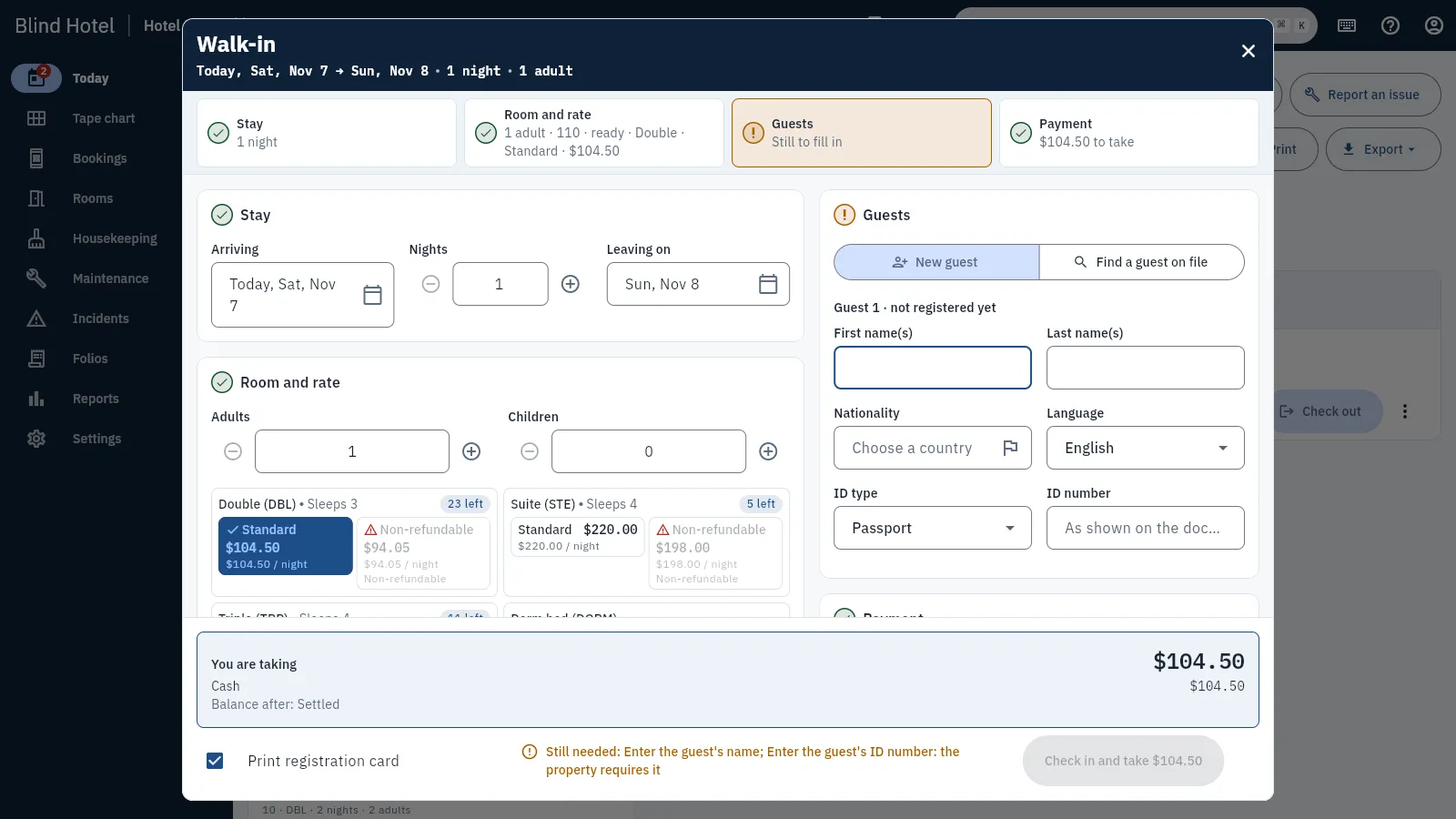
Go to Today and tap Walk-in. The Walk-in sheet opens.
-
In Stay, the arrival is today. Choose how many nights, or the day the guest leaves. A walk-in can be up to 30 nights.
-
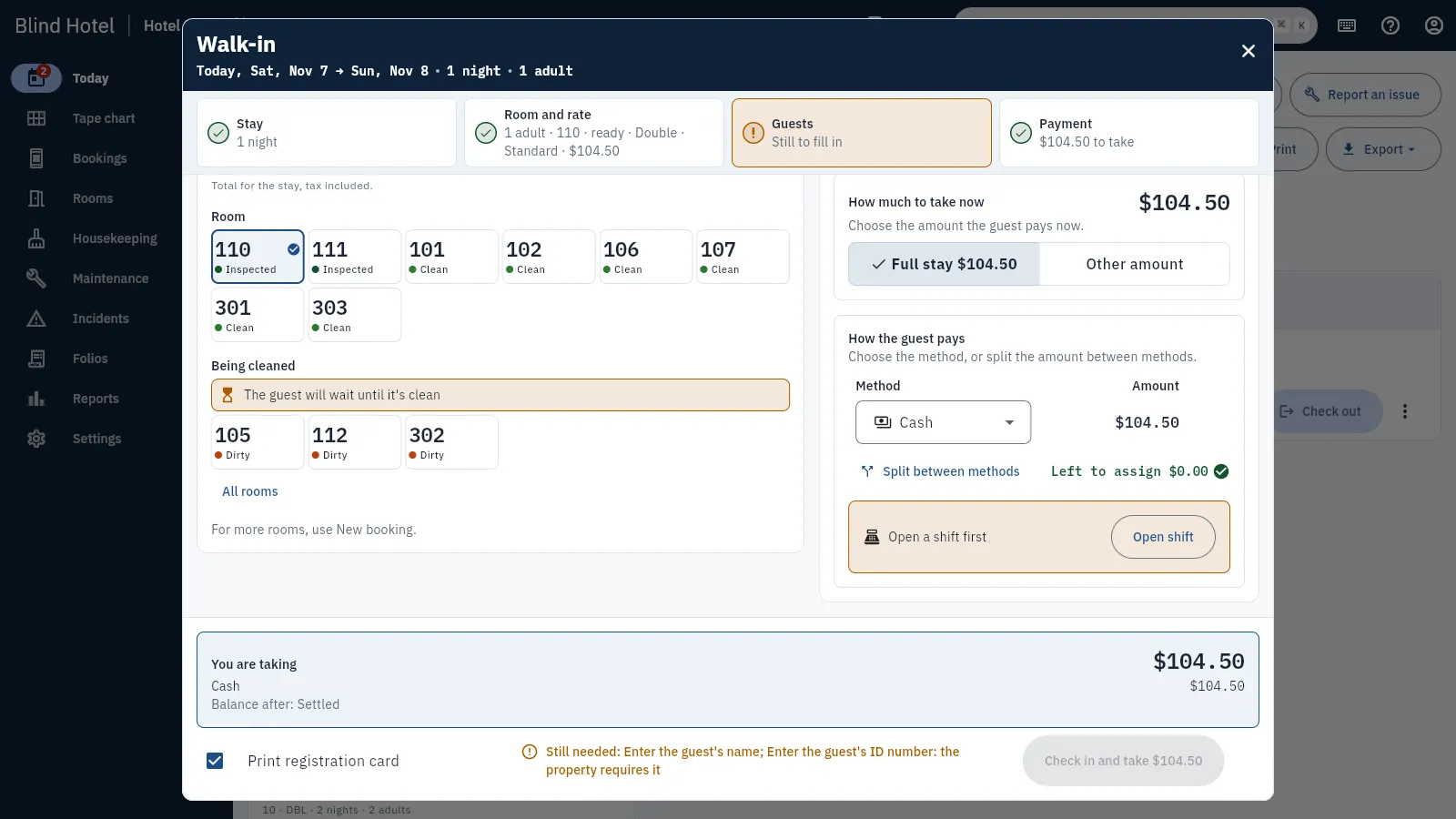
In Room and rate, set Adults and Children. Pick a room type and a rate. The sheet has already chosen the best ready room. To pick another, tap it under Room. All rooms shows more.
-
In Guests, type the guest’s name and, where your hotel asks for them, the nationality and the document. The footer says which. Or tap Find a guest on file and search by name, phone or email, so the guest is not entered twice. To add companions, use Add the other guests (optional). If your country asks for more, a folded Registration details shows here: open it and fill in what it lists.
-
In Payment, Take the payment now is on when you may take payments. Choose How much to take now and How the guest pays. Switch it off to check in without taking money.
-
Look at the footer. It lists what is still missing, such as “Choose a room.” The button stays off until the list is empty. Print registration card is ticked at first.
-
Tap Check in, or Check in and take with the amount.
-
If the stay is not fully paid, tap Take payment. To print the card again, tap Print registration card; to send it, tap Share PDF. Then tap Close.
Check your work
Section titled “Check your work”- The sheet says the guest is checked in, and in which room.
- The registration card prints, if it was ticked. Ask the guest to sign it.
- On Today, the guest is under In house. The room is occupied.
- If you took money, it is on the folio.
What next
Section titled “What next”- To take the rest of the payment, tap Take payment on the last view. See Take a payment.
- For more than 30 nights or more than one room, make a booking instead and check in when ready. See Check in a guest.
- For every part of the sheet, see The walk-in form.
- If the app refuses, see When the app says no at the desk.
Considerations
Section titled “Considerations”- A room still being cleaned shows under Being cleaned, with a note that the guest will wait. The sheet never picks such a room for you.
- If your hotel requires an ID, or the ID of every adult, the footer says so.
- Registration details shows only when your country pack requires more about guests. For the country of residence the sheet offers the nationality and you confirm it; it is never filled in for you.
- If your hotel requires a deposit and you do not take it, only a manager can check the guest in, and must give a reason.
- A blacklisted guest on file asks for Book anyway, which only an owner or a manager can choose.
- If no payment method is switched on, the sheet points you to Settings > Payments.
- Some payments, such as cash, go on your cashier shift. If none is open, the app asks you to Open shift.
- You can also reach this sheet from New booking, with the link “Guest is here now? Check in as walk-in”, or from the Tape chart.