Screen guide
The payment window
At a glance
- Purpose
- Take a payment, a deposit or part of a bill, and see exactly what it will do before you press the button.
- Who uses it
- Owner
- Manager
- Front desk
- Night audit
- Where to find it
- Today, Take payment; Pay on an in-house row; a folio, Take payment; a booking, Take deposit; key P
The window where you take money from a guest and put it on their folio: what they owe, how much now, and how they pay.
The screen
Section titled “The screen”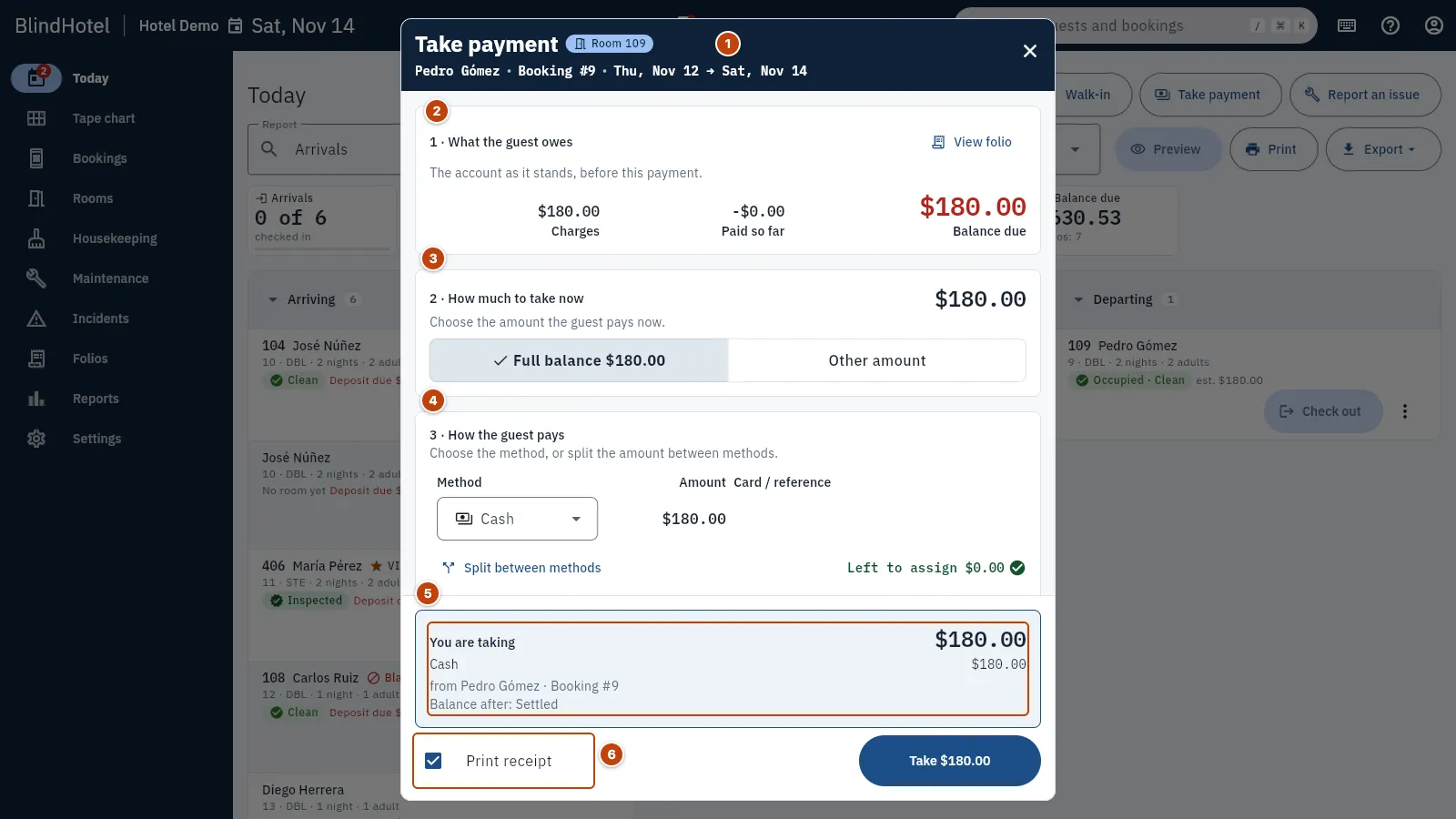
Parts of the screen
Section titled “Parts of the screen”- Header: Take payment, the room, the guest, the booking number and the dates. Opened without a guest, the window starts with a search box, Guest, room or booking #. Until you type, it lists the guests in the hotel who owe something.
- 1 · What the guest owes: Charges, Paid so far and Balance due, as the account stands before this payment. A booking with a deposit also shows “Deposit due” or “Deposit paid”. View folio opens the full account.
- 2 · How much to take now: Full balance, Deposit when one is due, or Other amount with an Amount field. If you take more than the guest owes, an amber note says the guest will be in credit.
- 3 · How the guest pays: a row for each payment with the Method, the Amount and, for a card, the card details. Split between methods adds up to four rows. Under it, the cashier shift line.
- You are taking: a box that says what the button will do: the amount, one line for each method, whose payment it is and which booking, and the Balance after.
- Foot: Print receipt (ticked at first), an amber “Still needed:” line when something is missing, and the button Take with the amount. It is always in view, even when the window scrolls.
Options and filters
Section titled “Options and filters”- Guest, room or booking #: type a name, a room or a booking number to find a guest who is in the hotel or arriving. Nothing matches a guest who has left.
- Full balance, Deposit and Other amount: the amount to take. Only the choices that apply show.
- Method: cash, card and the other methods your hotel switched on. Some are counted when the cashier shift closes.
- Card’s last 4 digits, Auth code (optional) and Reference (optional): for a card. Type only the last four digits. The terminal keeps the rest.
- Split between methods: gives each method its part, up to four. Left to assign shows what is still without a method; Over by shows too much.
Actions
Section titled “Actions”- Take with the amount (Owner, Manager, Front desk, Night auditor): records the payment. A message says “Payment taken” with the amount and offers the receipt and Open booking.
- Split between methods (Owner, Manager, Front desk, Night auditor): pays with more than one method. All of them are recorded together or none is.
- Open shift (Owner, Manager, Front desk, Night auditor): shown when the method needs a cashier shift and none is open.
- View folio: opens the guest’s account before you take the money.
- Print receipt: prints the receipt when the payment is recorded.
- Check again: appears if the answer is lost. See A payment was not confirmed.
Colours, icons and badges
Section titled “Colours, icons and badges”- Red Balance due: the guest owes money. “In credit” or “Settled” shows instead when there is no balance due.
- Amber “Guest will be in credit”: the amount is more than the balance.
- Amber “Open a shift first”: the method goes on a cashier shift and none is open.
- Amber “Still needed:”: something is missing, such as an amount or a shift. The button stays off.
Phone and desktop
Section titled “Phone and desktop”- The foot with the button stays in view while the cards scroll.
- Key P opens the window from anywhere. On a folio it opens for that folio. Ctrl+K or Cmd+K finds “Take payment for”.
- Esc closes the window, unless a payment is being sent.
Common questions
Section titled “Common questions”- Why does it say I need to open a shift? Cash and some other methods go on your cashier shift to be counted at close. Tap Open shift, then go on.
- Why is the guest not in the list? The list starts with guests in the hotel who owe something. Type their name, room or booking number to find any other.
- What if the guest pays too much? The window warns that the guest will be in credit. To give money back later, use Refund, under More actions in the folio.
- Can I type the whole card number? No. The app refuses it. Type only the last four digits.
- What if the internet drops while I take it? The window says “We couldn’t confirm this payment.” Do not take it again. Tap Check again.