Screen guide
The housekeeping board
At a glance
- Purpose
- Plan the cleaning for the day, share it among the attendants and check the rooms they finish.
- Who uses it
- Owner
- Manager
- Housekeeping
- Front desk
- Night audit
- Maintenance
- Where to find it
- Menu, Housekeeping. On a phone, Cleaning in the bottom bar.
The board shows every room to clean today, who has it and how far along it is. The Overview page next to it shows how the whole day is going.
The screen
Section titled “The screen”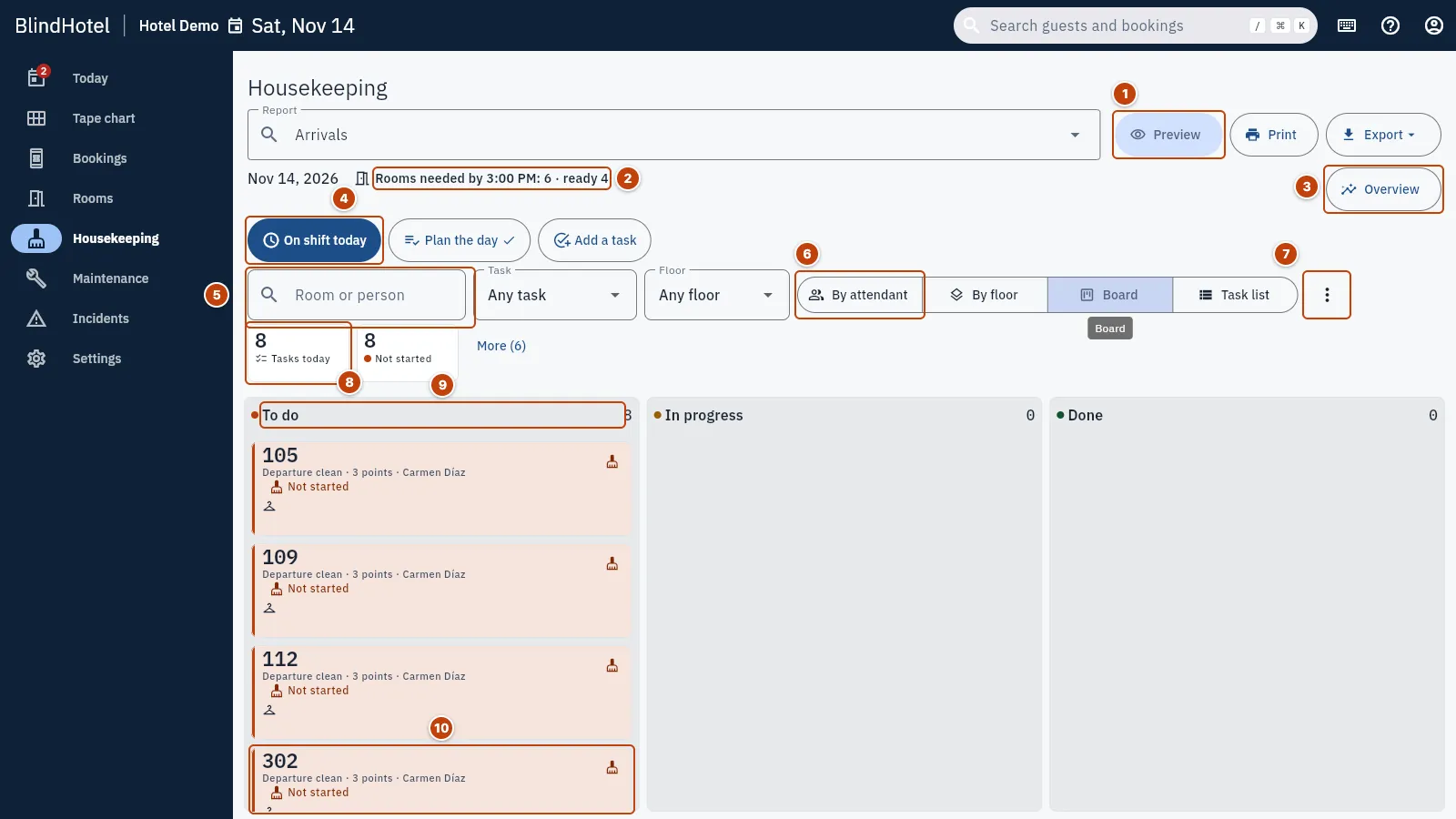
Parts of the screen
Section titled “Parts of the screen”- Reports row: a line under the title bar. Pick a report in the Report list, then Preview, Print or Export it without leaving the page. A role that may open no report sees no row.
- Day and readiness line: today’s date and a line like “Rooms needed by 3:00 PM: 6 · ready 4”. The time is your check-in time. “Needed” counts the arrivals that expect a room by then. “Ready” counts how many of those rooms are empty and ready to give.
- Overview: opens the Overview page. Only people who manage housekeeping see this button.
- Morning buttons: On shift today, Plan the day and Add a task, in the order of the morning. A small tick means that step is done today. The next step to do is the filled button.
- Search and filters: Room or person, then the Task and Floor menus. Clear filters appears when one is set.
- Views: By attendant, By floor, Board and Task list. The app remembers the one you chose.
- More actions: the three-dot menu with the settings, Points and linen, Room standards and Usual week.
- Stat boxes: the day in numbers. Each box is also a filter: tap it to show only those tasks, tap it again to lift it.
- Board columns: one column for each stage, with the number of cards in its header. Only the Board view has columns.
- Task card: the room, the kind of task, its points and the stage in words. Tap it to open it beside the board.
Options and filters
Section titled “Options and filters”- Room or person: type part of a room code or of a person’s name.
- Task: Any task, Departure clean, Stayover, Deep clean, Inspection or Turndown.
- Floor: Any floor, or one floor.
- Stat boxes: Tasks today, Done, In progress, To inspect, Not started, Unassigned, Rush and Arrivals waiting. A box with nothing in it waits behind More.
- Views: By attendant has a band for Unassigned and one for each person, with their floors, hours and “4 of 6 · 18 points of 26”. By floor has a band for each floor. Task list is a table you can tick. Board has the columns To do, In progress, To inspect and Done.
- Report: the list in the Reports row. Under This department are the reports made for this page, and under All reports the others your role may open, each group in alphabetical order. Type in it to narrow the list: the headings remain over what is left. The report you pick is kept for you on this page, on any computer. A report opened from here starts on this week. A list of one day, such as Arrivals, starts on the business date. Print and Export use the same dates. For other dates, tap Preview and change them there.
Actions
Section titled “Actions”- On shift today (Owner, Manager, Housekeeping supervisor): opens Who is on shift today?. Tick the people, set From and To if you want, then Save. Same as yesterday fills in yesterday’s list. If nobody is set yet, the list opens filled in from the usual week.
- Plan the day (same roles): makes today’s tasks if there are none, then asks Who is working today?. Tick the people, tap Preview, then Apply. A message says how many tasks were given out, with Undo.
- Add a task (same roles): choose the Room and the Task: Deep clean, Stayover, Turndown or Inspection.
- Assign to… or Reassign… (same roles): in a task’s panel, choose the person. In Task list, tick several rows first. On a computer you can also drag a card to another person’s band.
- Start and Done (the person who has the room, or a supervisor): in the task’s panel. Dragging a card to the next column in Board does the same.
- Pass inspection and Fail inspection (Owner, Manager, Housekeeping supervisor): for a room under To inspect. Fail inspection asks What is left to do and sends the task back with your note.
- Rush: guest waiting or Not a rush any more (Owner, Manager, Housekeeping supervisor, Front desk, Night auditor): puts a room first on the attendant’s list. It is offered while the room is not ready.
- Do Not Disturb or Lift Do Not Disturb (Owner, Manager, Housekeeping supervisor, Front desk, Night auditor): for a room with a guest in it.
- Skip today (Owner, Manager, Housekeeping supervisor): asks Why is it skipped?. Do it today brings the task back.
- Extras… (Owner, Manager, Housekeeping supervisor, Front desk, Night auditor): says what a stay asks for in the room, such as an extra bed or a crib.
- Resolve (same five roles): on a line of Discrepancies, asks What was done.
- Overview (Owner, Manager, Housekeeping supervisor): the page Housekeeping today. It shows Progress of the day against Expected by now, the arrivals of each hour against the rooms ready, cards for Rush, Inspections, Discrepancies and Out of order, To send up from the laundry, and Team productivity for 7 or 30 days. Show people is for the Owner and the Manager. Back to tasks returns here.
- Points and linen, Room standards (Owner, Manager) and Usual week (Owner, Manager, Housekeeping supervisor): the settings in the three-dot menu. See The Room standards screen and The Usual week screen.
- Preview, Print and Export (Owner, Manager, Housekeeping supervisor, Front desk, Night auditor): act on the report shown in the Report list. Preview opens it in a large window with its own dates. Print asks the language of the paper first. Export has two choices, CSV file and Excel file. See The report preview.
Colours, icons and badges
Section titled “Colours, icons and badges”- A tile takes the colour of its stage, the same colours as the Rooms screen: not started is the colour of a dirty room, in progress of a room being cleaned, to inspect of a clean room, done of an inspected room. Skipped or carried tasks are grey. The stage is always written too.
- The marks along the bottom of a tile are Rush (lightning bolt), a VIP arrival (star), the arrival time, Do Not Disturb, Linen change and the minutes since the task was started.
- Waiting: Do Not Disturb means a stayover is on hold until Do Not Disturb is lifted.
- Discrepancies is a card over the tasks: a room an attendant found different from the front desk’s record, with who reported it.
- On track or Behind by a percentage, on the Overview, says if the day is on pace.
Phone and desktop
Section titled “Phone and desktop”- On a phone the header scrolls inside the screen, the morning buttons and the boxes are one row that scrolls sideways, and the views show only their icons. Board columns scroll sideways and cards cannot be dragged: open the card and use its buttons. A task opens as a page of its own.
- On a computer, a task opens beside the board. Press / to go to Room or person. Ctrl+K (⌘K on a Mac) searches the whole app. Esc closes the panel. ? shows the shortcuts.
- On a phone the Report list takes the full width, and Preview, Print and Export wrap onto a line under it.
Common questions
Section titled “Common questions”- Why does Plan the day do nothing? It needs at least one person who can clean, and the button stays off until you have one. See Invite your team.
- Why is there no Overview button? Only people who manage housekeeping see it. You see the board but cannot change it.
- Why can’t a room be started? A departure clean waits until the guest has checked out. A room with Do Not Disturb waits until it is lifted.
- Why is there no To inspect column? Your hotel does not need inspected rooms, so a cleaned room goes straight to Done.
- Where do unfinished rooms go at night? The night audit carries them to the next day.
- Why is there no Reports row? Your role may open no report, so the row is hidden. A Housekeeper may open none. The Housekeeping supervisor opens only the housekeeping reports, and Maintenance only the maintenance reports, so their row lists just those. Ask a manager if you need more.