Process guide
Set prices and taxes
Time15 to 30 minutes
- Owner
- Manager
DifficultyMedium
Tell the app what a night costs, which tax you charge, and how guests pay. These are the setup steps Your prices and How guests pay.
Purpose
Section titled “Purpose”Without a price a room cannot be booked. The prices, the tax and the payment methods you set here are what the front desk quotes, charges and takes payment with.
Ingredients
Section titled “Ingredients”- Permissions: Owner or Manager. Once the hotel is live, changing prices needs your two-step sign-in.
- Information: A normal price per night for each room type, your check-in and check-out times, your tax rate (or that you charge none), and the payment methods you accept.
- State: Your room types exist. See Set up rooms.
Expected result
Section titled “Expected result”Each room type has a normal price, the tax is set, the times are set, and only the payment methods you accept are switched on.
-
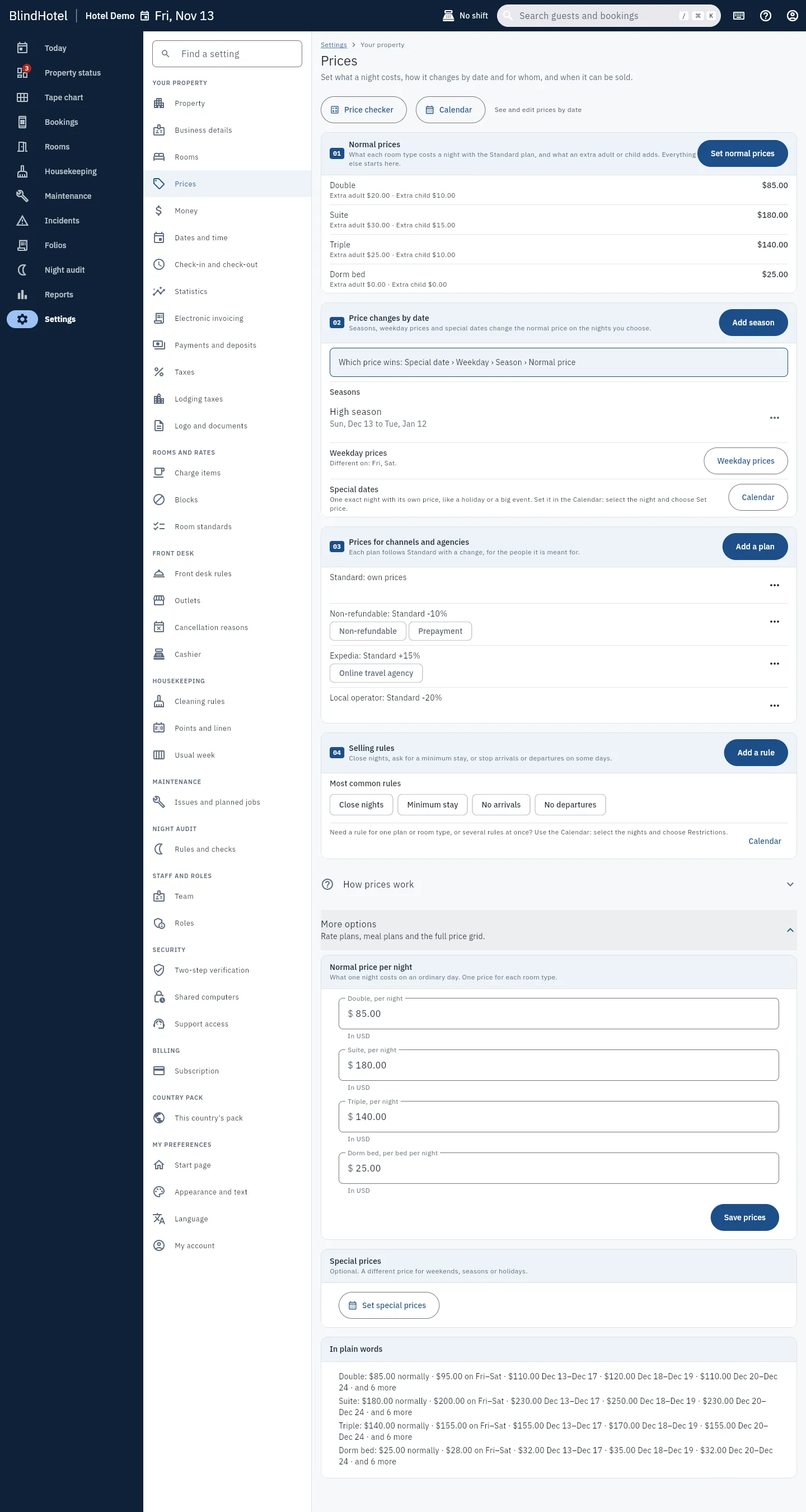
In the quick setup, open the step Your prices. Later, open Settings, then Prices. Step 1 shows the normal price of each room type, and under More options you find the same prices in a short form.
-
In Normal price per night, type the price for each room type. Type your best guess. Prices are easy to change.
-
Look at Check-in from and Check-out by. Check-in is when guests can come to their room. Check-out is when they must leave.
-
Look at the taxes. The app fills in the taxes of your country. If your country has no preset, type your Tax percentage. If you charge no tax, type 0. If Taxes set, or “no taxes” stays missing in Open for bookings, open Settings, then Taxes, and turn on This property charges no taxes or tap Add tax.
-
In the quick setup, tap Next to save the prices, the tax and the times. In Settings, tap Save prices.
-
Optional, for a weekend, a holiday or a busy week: tap Set special prices. A calendar opens.
-
Tap a night, then another one to pick a range. Or tap a shortcut such as the weekend.
-
Type the price for each room type and tap Set price.
-
In the quick setup step How guests pay, each payment method has a switch. Turn off the ones you do not take. Tap Next.
Check your work
Section titled “Check your work”Under the calendar, In plain words says what is set, for example: Double: $75 normally, $90 on Fri–Sat, $110 on Dec 20–Jan 5. Check that it says what you mean. A method that is switched off shows the tag Off.
What next
Section titled “What next”- To change prices later, open Settings, then Prices. The four steps are there: normal prices, price changes by date, prices for channels and agencies, and selling rules. See The Prices screen.
- For a plan for a channel or a company, see Create a rate plan for a channel. For a busy week, see Change prices for a season.
- The times are in Check-in and check-out, the money format in Money, the taxes in Taxes and the methods in Payments and deposits.
- Next, protect your account. See Protect your account.