Screen guide
The Today screen
At a glance
- Purpose
- See the whole day at one look and do the next task from the row it belongs to.
- Who uses it
- Owner
- Manager
- Front desk
- Night audit
- Housekeeping
- Where to find it
- Menu, Today
The front desk’s home screen: who arrives, who leaves, who is in the hotel, and what needs you now.
The screen
Section titled “The screen”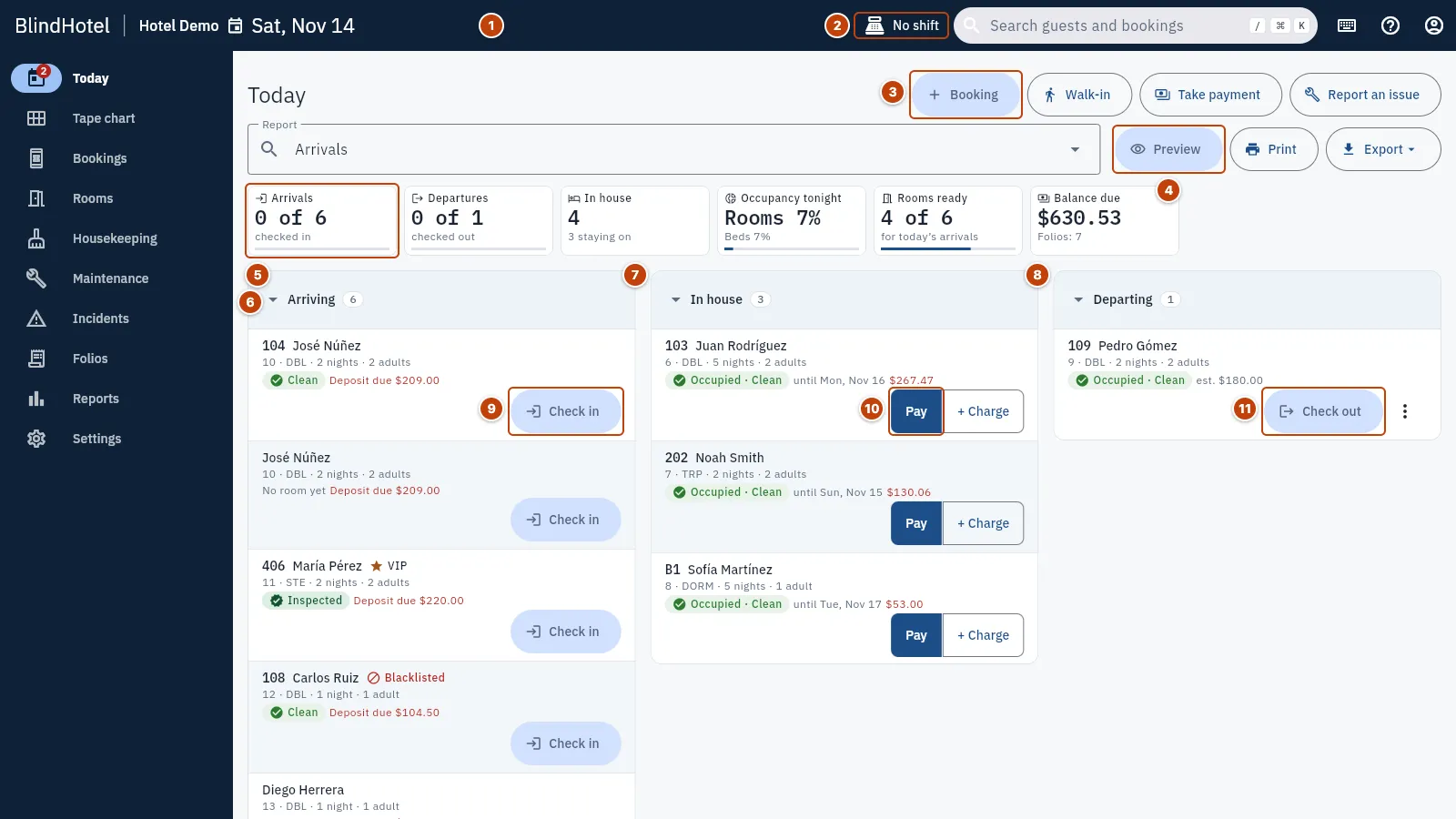
Scroll down for Needs attention and Shift notes. They are listed under Options and filters. A custom role that does not read bookings sees room counts instead of the guest lists.
Parts of the screen
Section titled “Parts of the screen”- Business date: the day the hotel is working on, in the top bar. The night audit closes it. A chip that says Audit due means the day was not closed: ask the night auditor or a manager.
- Shift chip: your cashier shift, for the roles that work a drawer. No shift means none is open. Tap it to open or close one. See Your cashier shift.
- Quick buttons: Booking, Walk-in, Take payment and Report an issue. Check out all settled shows when some departures owe nothing. You only see the buttons your role allows.
- Reports row: a line under the title bar. Pick a report in the Report list, then Preview, Print or Export it without leaving the page. A role that may open no report sees no row.
- Stat boxes: Arrivals and Departures (done out of expected), In house (and how many stay on), Occupancy tonight (the private rooms that have a guest out of those you can sell; where you have dorms, Rooms and Beds are told apart, and a dorm is never counted as a room), Rooms ready (ready out of today’s arrivals) and, if you may see money, Balance due with its number of folios.
- Arriving: today’s arrivals, and guests who were due earlier and have not come. A row shows the room (or No room yet), the guest, the nights, the room’s state and, in red, Deposit due when one is still to be paid.
- In house: guests staying tonight. Each row shows the room, the stay’s end date and, for money roles, the balance.
- Departing: guests who leave today, and guests who should have left earlier (Was due out). The row shows the estimate of what they owe.
- Check in: on an arrival’s row. It opens the check-in sheet.
- Pay and + Charge: on an in-house row. Pay takes a payment, + Charge adds a charge to the folio.
- Check out: on a departure’s row. If the guest owes nothing, the check-out is done at once, with Undo. Otherwise the check-out sheet opens.
Options and filters
Section titled “Options and filters”- Stat boxes as filters: tap a box to list only what it counts. Tap it again, or tap Clear filters, to see everything.
- Show all: each list shows five rows. The button under it shows the rest, and Show less folds it back.
- Needs attention: each line says what is wrong and has one button that fixes it. By guest or By task groups the lines. A line leaves the list when what it asks for is done.
- Shift notes: what the last shift left for you. To leave one, write it under Note for the next shift, tick Important if it cannot wait, and tap Add note. Archive removes a note you have read.
- Waiting for you: shows only when something waits for you, such as cashier shifts to approve or incidents to sign off. Tap a line to go there.
- Setup card: on a hotel that is not fully set up, owners and managers see what is left. Tap its button to do the next item, or Dismiss to hide it.
- Report: the list in the Reports row. Under This department are the reports made for this page, and under All reports the others your role may open, each group in alphabetical order. Type in it to narrow the list: the headings remain over what is left. The report you pick is kept for you on this page, on any computer. A report opened from here starts on the business date. Print and Export use the same dates. For other dates, tap Preview and change them there.
Actions
Section titled “Actions”- Booking (Owner, Manager, Front desk, Night auditor): opens the new booking form. See The New booking form.
- Walk-in (Owner, Manager, Front desk, Night auditor): for a guest with no booking. See The walk-in form.
- Take payment (Owner, Manager, Front desk, Night auditor): asks who pays, then opens the payment window. See The payment window.
- Check out all settled (Owner, Manager, Front desk, Night auditor): shows the names first, then checks them all out.
- Report an issue (Owner, Manager, Front desk, Night auditor, Housekeeping supervisor): reports a problem in a room.
- Check in, Check out, Pay and + Charge (Owner, Manager, Front desk, Night auditor): the button on a row. Without the right, or when it is already done, the row shows the status instead. The accountant sees Folio, to read the folio.
- More, the three dots on a row (Owner, Manager, Front desk, Night auditor, Housekeeping supervisor): on an arrival whose room is not ready it offers Rush: guest waiting, so housekeeping cleans it first. On a departure whose guest is still in the room it offers Do Not Disturb.
- Fix buttons in Needs attention: Check in, Register, Check out, Extend 1 night, Guest had left, Close shift, Review (a shift with a difference), Assign a room or Find a room, Rush a room, Housekeeping (a guest waiting for a room), Take a deposit, Resolve (a room found different), Tape chart (an overbooked night), Got it.
- Preview, Print and Export (Owner, Manager, Front desk, Night auditor, Accountant, and the Housekeeping supervisor for the housekeeping reports): act on the report shown in the Report list. Preview opens it in a large window with its own dates. Print asks the language of the paper first. Export has two choices, CSV file and Excel file. See The report preview.
Colours, icons and badges
Section titled “Colours, icons and badges”- Red text on a row: money or time that needs you, such as Deposit due, Due a day that has passed, or Was due out.
- Blacklisted with a red circle by a name: the guest is on the blacklist. A star and VIP mark a VIP.
- A green chip with a check on a row, such as Clean, means the room is ready. Other room states show their own word and colour.
- The thin bar under Arrivals, Departures, Occupancy tonight and Rooms ready shows how much of the day is done.
- A red number in the menu counts what is new for you. On Today it is the shift notes you have not read (owners and managers see it on Property status). On Bookings it is the bookings that changed since you last looked.
- A red box at the top of the page, such as “The automatic night audit failed”, has a button, Open the night audit, for those who may run it.
Phone and desktop
Section titled “Phone and desktop”- From about 840 pixels wide the three lists stand side by side and Needs attention is beside Shift notes. Narrower, they stack one under the other.
- Wide, a booking you tap opens beside the list. On a phone it opens as a page.
- Keys, when you are not typing in a field: B for a new booking, W for a walk-in, P to take a payment, / or Ctrl+K (Cmd+K on a Mac) to search, ? to see all shortcuts.
- Today updates by itself when another desk checks someone in or out.
- On a phone the Report list takes the full width, and Preview, Print and Export wrap onto a line under it.
Common questions
Section titled “Common questions”- Why can’t I see the guests? Your role does not read bookings (a custom role can have Today without that). You see room counts, and shift notes if you may use them.
- Why is there no Check in button on a row? The guest is already in, or your role may not check guests in. The row shows the status instead.
- Why does an arrival say No room yet? The booking has no room. Open it and assign one, or use the fix in Needs attention.
- Where did a line in Needs attention go? Someone did what it asked. The list updates by itself.
- Why is there no Reports row? Your role may open no report, so the row is hidden. A Housekeeper may open none. The Housekeeping supervisor opens only the housekeeping reports, and Maintenance only the maintenance reports, so their row lists just those. Ask a manager if you need more.