Screen guide
The Incidents screen
At a glance
- Purpose
- Keep a record of what went wrong, and let a manager read it and close it with a sign-off.
- Who uses it
- Owner
- Manager
- Front desk
- Night audit
- Housekeeping
- Maintenance
- Where to find it
- Menu, Incidents. On a phone, More, then Incidents.
Incidents is the log of what went wrong at the property: a complaint, an accident, damage, noise, a lost thing. A manager reads each one and signs it off.
The screen
Section titled “The screen”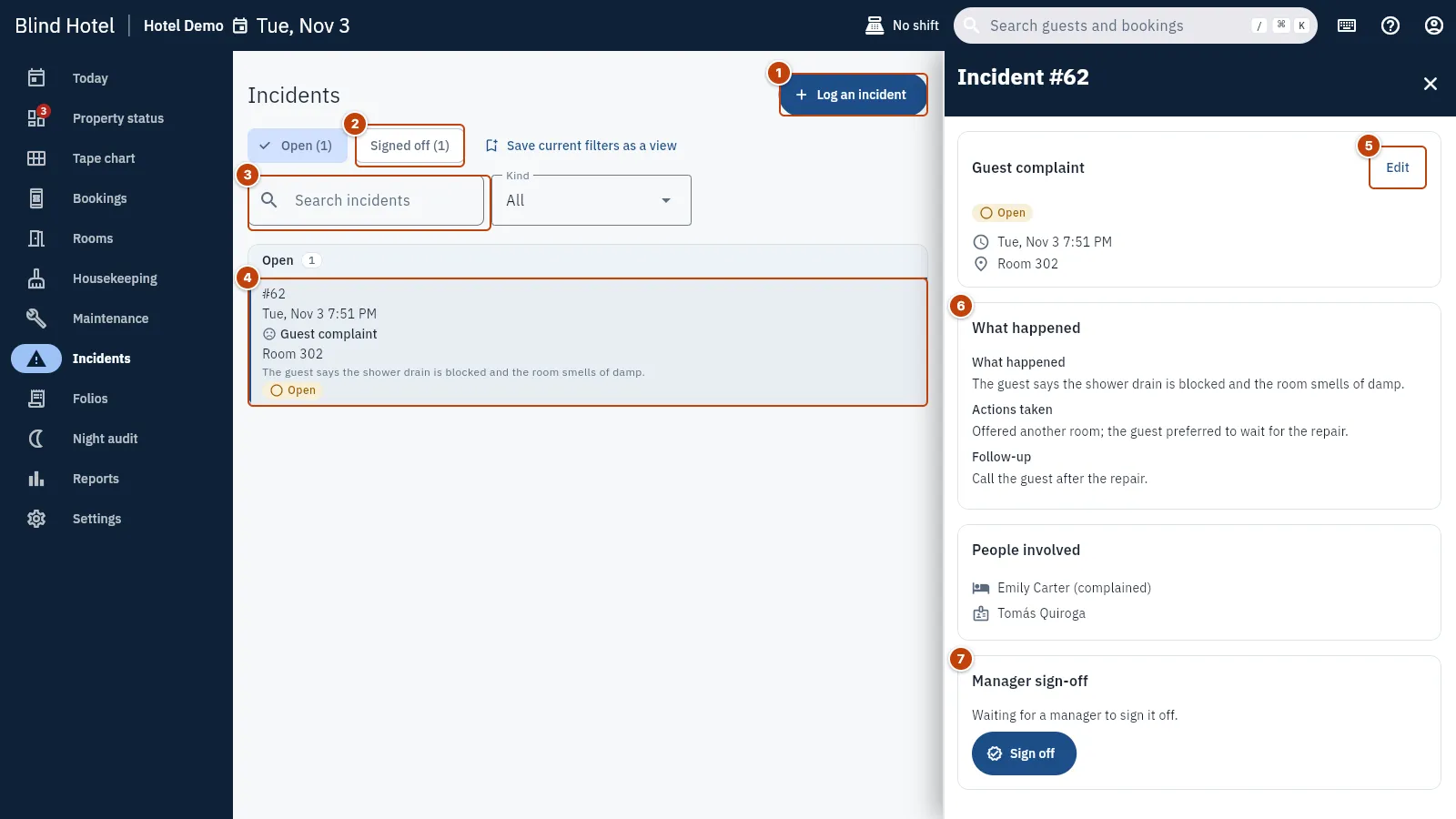
Parts of the screen
Section titled “Parts of the screen”- Log an incident: the button on top. Whoever may record incidents sees it.
- Views: Open and Signed off, each with how many incidents it holds.
- Search and filter: Search incidents, the Kind menu, and Clear filters when one is set.
- Incident row: the number, when it happened, the kind, where, the first lines of what happened and its status. Tap it to open the incident beside the list.
- Edit: on the incident’s first card, which also shows the kind, the status, when it happened and where.
- What happened: the account, with Actions taken and Follow-up when they were filled in. A People involved card follows when people were added.
- Manager sign-off: the last card. It says “Waiting for a manager to sign it off.” or who signed it off and when, and has the Sign off button for a manager.
Options and filters
Section titled “Options and filters”- Views: Open holds the incidents nobody has signed off. Signed off holds the closed ones. Both show the newest first, by when it happened.
- Search incidents: type the incident’s number, a room code, a place or a word of what happened.
- Kind: All, Guest complaint, Accident or injury, Security, Damage, Noise, Lost property or Other.
- Save current filters as a view: a button under the views, to keep a search with its filters as a view of its own. The View options menu of a saved view has Pin to top, Rename and Delete.
Actions
Section titled “Actions”- Log an incident (Owner, Manager, Front desk, Night auditor, Housekeeping supervisor, Housekeeper, Maintenance): choose What kind of incident was it?, set When did it happen? (not in the future) and choose Where did it happen?: Room, Area or Somewhere else, which asks for its Place. Write What happened, add Actions taken and Follow-up if you can, and tap Log incident. A message says “Incident #4 logged.” Only the kind and what happened are needed.
- Add a person (when you log an incident, and later the same people as Edit): in the form, under People involved. Choose Guest, Staff or Someone else, find the person (Find a guest by name for a guest), add Their part (optional) and tap Add. Remove takes one off. The People involved card on an incident only lists them.
- Edit (Owner, Manager, and the person who logged it): only while the incident is open. It opens Edit incident #4 with the same fields, then Save.
- Sign off (Owner, Manager): asks for a Note (optional) and says “Signing off closes the incident. It stays in the log and can be reopened.”
- Reopen (Owner, Manager): on a signed off incident. It asks Why (optional), and says “The incident goes back to open and the sign-off is cleared.”
Colours, icons and badges
Section titled “Colours, icons and badges”- The status is a chip with a sign and a word. An open Accident or injury or Security incident is red, with an alert sign. Any other open incident is amber, with an empty circle. Signed off is green, with a check.
- Each kind has its own small icon in the list, next to its name.
- “No place given.” appears when the incident has no room, area or place.
Phone and desktop
Section titled “Phone and desktop”- On a phone, the views are a row of chips on top, and the rows fold into small cards. An incident opens as a page of its own, with the same cards and buttons.
- On a computer, the incident opens in a panel on the right. The views are a column on the left, or chips on top while an incident is open.
Common questions
Section titled “Common questions”- Why don’t I see all the incidents? You can log incidents but not manage them, so you see only the ones you logged.
- Why is there no Edit button? The incident is signed off, or it is not yours to change. Ask a manager.
- Why is there no Sign off button? Only the Owner and the Manager sign off.
- Can I delete an incident? No. It stays in the log. Reopen it if it needs more work.
- Can I log one for something that happened days ago? Yes, up to 30 days back. Set the day and time in When did it happen?.