Screen guide
The tape chart
At a glance
- Purpose
- See which rooms are free and which are taken, move a stay to other nights or another room, and start a booking by choosing the room and the nights yourself.
- Who uses it
- Owner
- Manager
- Front desk
- Night audit
- Housekeeping
- Where to find it
- Menu, Tape chart
A calendar of your rooms: rooms down the side, nights across the top, and a bar for every stay.
The screen
Section titled “The screen”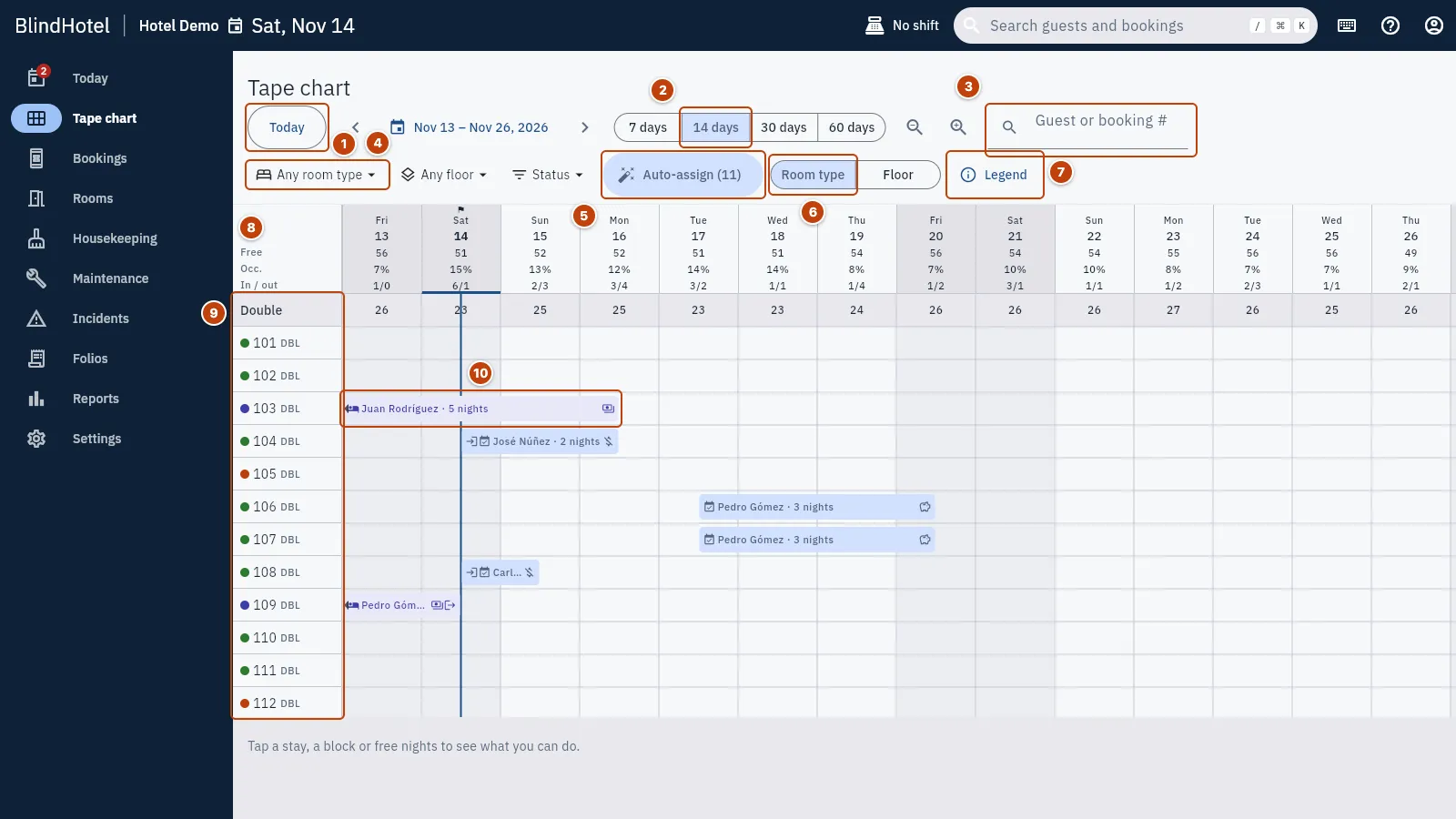
Parts of the screen
Section titled “Parts of the screen”- Today, Earlier, the dates and Later: Today jumps back to today. Earlier and Later move the window. The dates between them open Go to a date.
- Days shown: 7 days, 14 days, 30 days or 60 days. The two zoom buttons next to them make the day columns Narrower days or Wider days.
- Search: type a guest’s name or a booking number. The chart jumps to the first match, and “1 of 2” lets you step to the next. Clear the search empties it.
- Filters: Any room type and Any floor (each only when there is more than one) and Status narrow the rows. Each filter in force becomes a chip you can remove, and Clear filters removes them all.
- Auto-assign: shows how many stays in the days shown have no room yet. One tap gives each one the best free room of its type.
- Room type or Floor: groups the rooms under a heading for each type, or for each floor. Grouped by type, a heading row counts the type’s free rooms for each night.
- Legend: opens “What the chart shows”, a key to every colour, pattern and mark of the chart.
- Figures under each date: Free rooms, Occ. (the share taken) and In / out (arrivals and departures). Tap a date to list that night’s bookings.
- Rooms: one row for each room, or each bed of a dorm, with a dot for the room’s state. The Unassigned row holds stays that have no room yet.
- Stay bars: one for every stay, with the guest’s name and nights. A stay starts in the afternoon of its first day and ends in the morning of its last, so back-to-back stays touch.
Options and filters
Section titled “Options and filters”- Go to a date: pick any day and the chart opens there.
- Status filter: tentative, confirmed, in house and checked out. Tick one or several.
- Dorm beds: a dorm room has a control to Show the beds of that room, and Hide the beds of it again.
- Tap a date: lists that night’s bookings in the Bookings screen.
- Tap a stay, a block or free nights: the bar at the bottom says what you can do. With nothing selected it says: “Tap a stay, a block or free nights to see what you can do.” Clear the selection or press Esc to leave it.
- Several free nights with a mouse: drag across them. When you let go, a small menu offers New booking and Block a room, and Walk-in when the nights start today.
Actions
Section titled “Actions”- Open booking (everyone who reads the chart): shows the stay’s booking beside the chart, or as a page on a phone.
- Move to… (Owner, Manager, Front desk, Night auditor): pick another room or bed. A stay with no room has Assign… instead.
- A night earlier, A night later, One night less and One night more (Owner, Manager, Front desk, Night auditor): change the nights. On a computer you can also drag the bar, or drag its right end.
- Change (Owner, Manager, Front desk, Night auditor): when a change alters the nights or the room type, a box shows the stay Now and After with the price. Change confirms it. Moving to another room of the same type on the same dates happens at once, with Undo.
- Book (Owner, Manager, Front desk, Night auditor): on free nights, opens a new booking with that room and those nights chosen. More nights and Fewer nights change the stay first.
- Block (Owner, Manager, Front desk, Night auditor, Housekeeping supervisor, Maintenance): on free nights, puts the room out of use. A selected block has Change and Remove.
- Auto-assign (Owner, Manager, Front desk, Night auditor): gives each unassigned stay a room, and Undo takes them back.
Colours, icons and badges
Section titled “Colours, icons and badges”- Stay bars have a colour for each status: Tentative, Confirmed, In house and Checked out. The colours depend on the look you chose. Legend draws them the way the chart does.
- Arrows on a bar: a bar with an arrow in is Arrives today. An arrow out is Leaves today.
- Small signs on a bar: Balance due, VIP, Has notes, Deposit paid and No deposit.
- A hatched bar is a block: Out of order or Out of service. The block says its reason, and nobody can book that room on those nights.
- The filled blue date is today. A flag, a thick line under the date and a thin line down the page mark the business date. The night audit moves it.
- Shaded columns are Friday and Saturday nights.
- The Free figure under a date turns amber at one room and red at none or fewer, which is an overbooked night.
- A dot by a room’s code shows its state, in the same colours as the Rooms screen.
Phone and desktop
Section titled “Phone and desktop”- On a phone the chart shows 3 or 7 days. You cannot sweep across free nights. Tap a stay or a free night, then use the buttons at the bottom.
- On a computer the booking you open shows beside the chart. You can drag a bar to move it, drag its right end to change the nights, and drag across free nights.
- Keys, when the chart has the focus: the arrow keys move the selection by a room or a night, Enter opens the booking, T goes to today and Esc clears the selection.
- / goes to the chart’s own search box. Ctrl+K (Cmd+K on a Mac) searches the whole app.
Common questions
Section titled “Common questions”- Why can’t I move a stay? Only stays that are not over, not cancelled and not checked out can change. A stay that has started keeps its arrival date. Your role also needs to manage bookings.
- Why does the chart say the room can’t go there? The room is booked or blocked on those nights. The message says who has it, or which block.
- Why is a stay in the Unassigned row? It has no room yet. Use Assign…, or Auto-assign.
- Why is there no Block button for me? Blocking needs its own permission. Ask an owner or a manager.